

Deutsche Fassung: auf Deutsch lesen
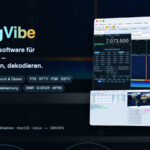
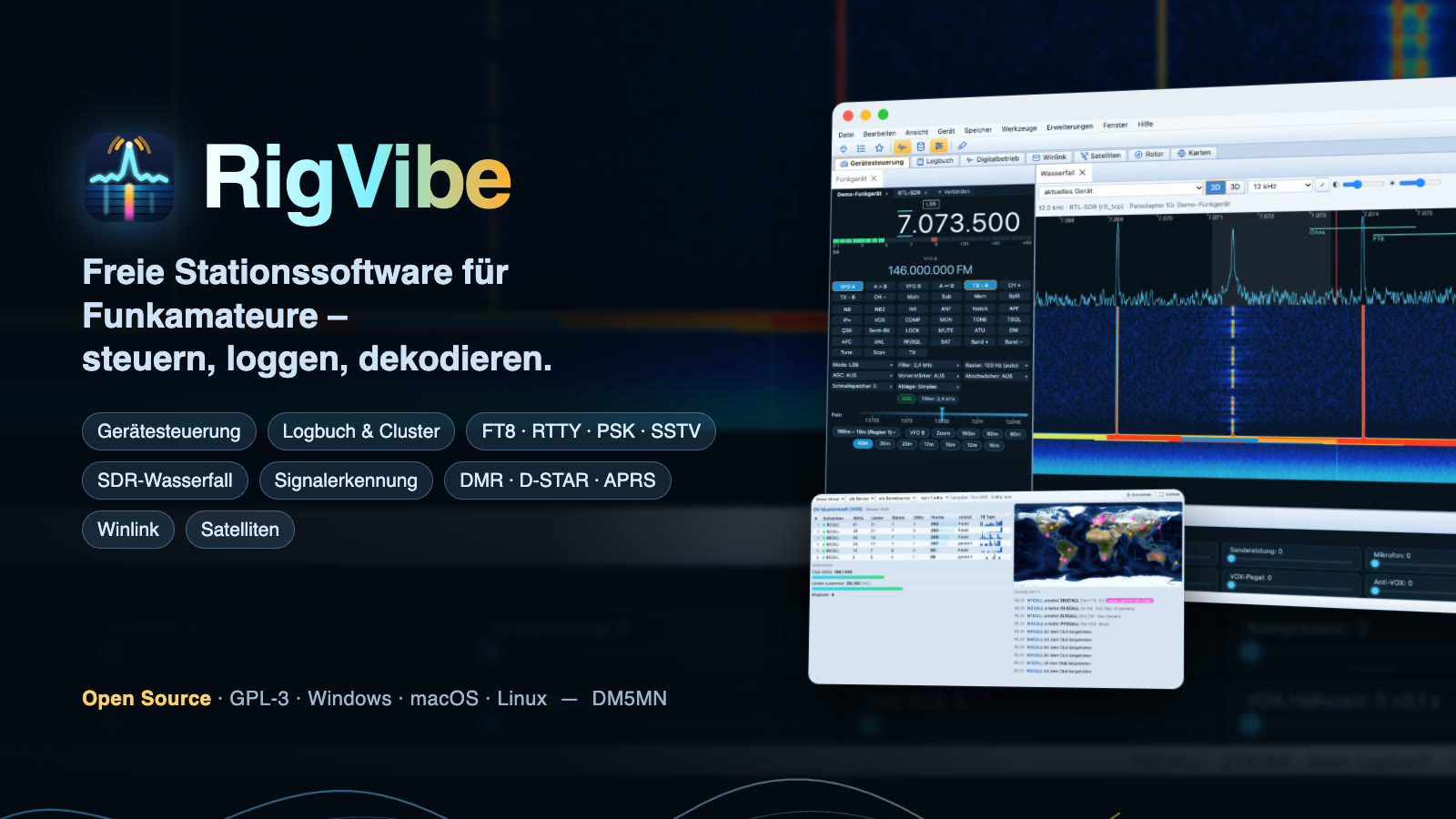
I built myself a program for my radio station: RigVibe. The idea was simple – I no longer wanted to have five different programs open at the same time to control the radio, log QSOs, do FT8, watch the waterfall and keep an eye on the DX cluster on the side. RigVibe brings all of that under one roof – free, at no cost, and for Windows, macOS and Linux.
What makes it special: I “vibe-coded” RigVibe with the help of Claude Code, Anthropic’s AI. I describe what I want, the AI writes the code, and I test everything at my station and on receivers on the internet. That is how a fairly large program came about in a short time – still amazing to me.
Important: RigVibe is still an alpha version. Much of it already works really well, but there will still be rough edges. That is exactly why I am happy about every bit of feedback!
🖥️ The sBitx becomes a new radio: RigVibe on the Raspberry Pi
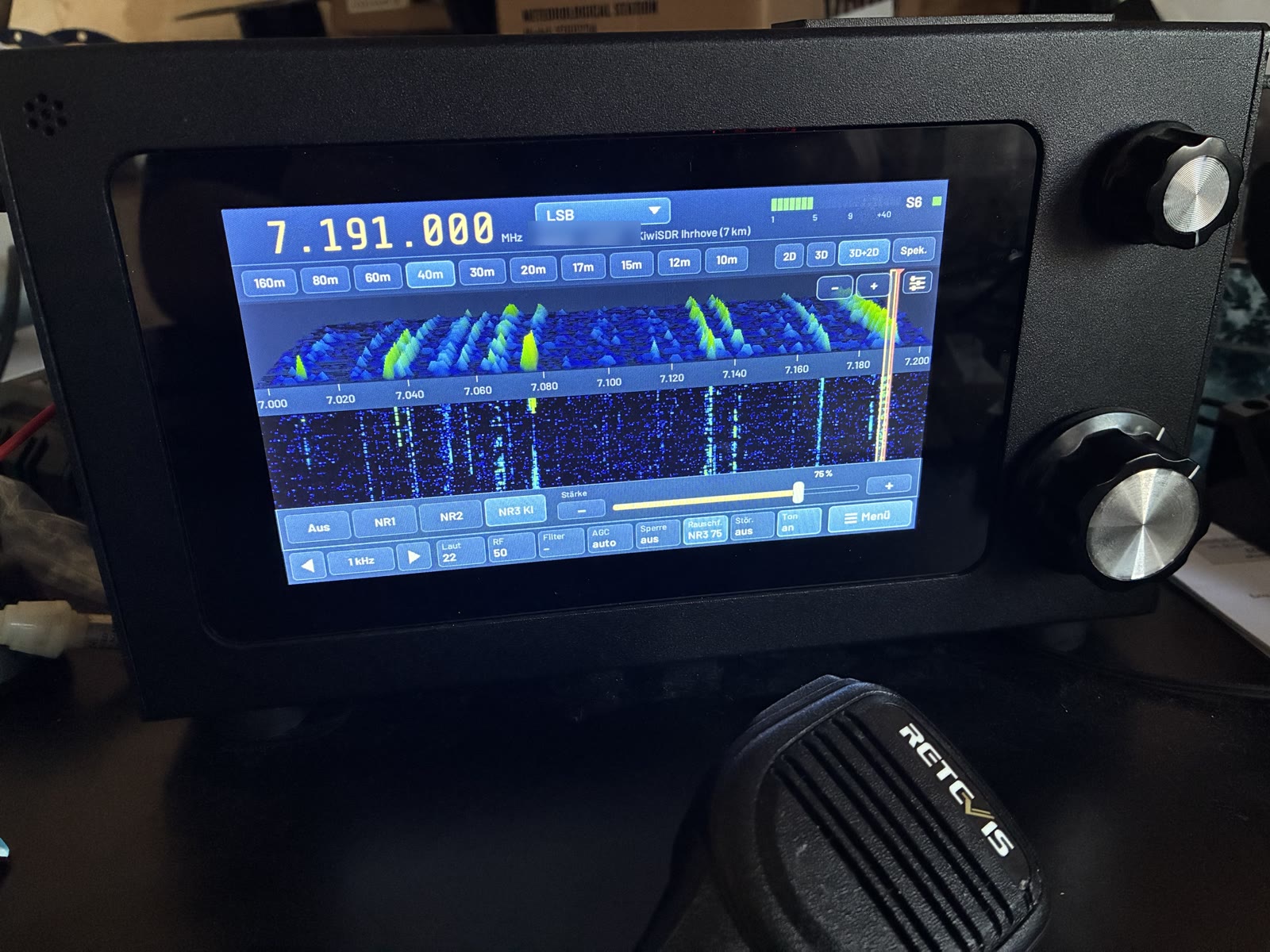
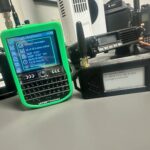
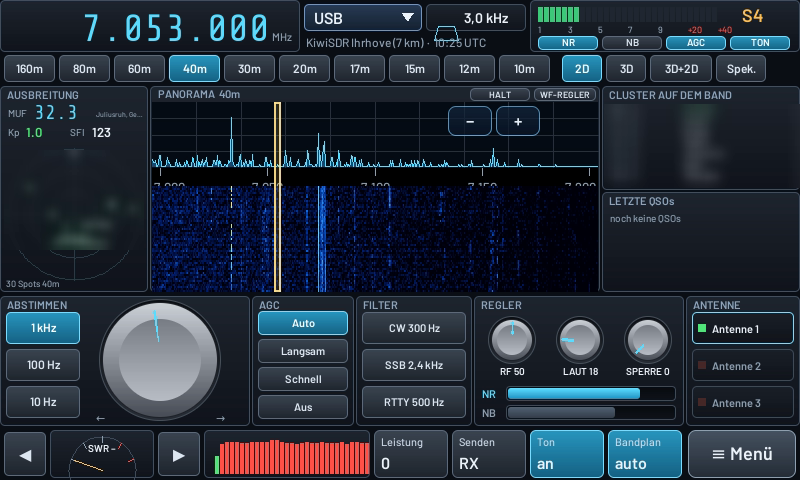
RigVibe now runs as a standalone radio on the Raspberry Pi: with its own full-screen touch interface, without a desktop and without a browser. On the sBitx v3, RigVibe controls the hardware itself – Si5351, low-pass filters, codec, SWR bridge and both knobs. The sBitx software is not needed for this. The web interface remains reachable on the network.
Installation takes one line. The script detects the sBitx and, if you want, sets up radio mode; with --deinstallieren everything is back to how it was:
curl -fsSL https://rigvibe.de/install.sh | bashAlmost everything RigVibe can do is on the radio: waterfall in 2D and 3D with fine zoom, AI noise reduction, FT8/FT4/JS8 with transmit and QSO sequencing, PSK31, RTTY, CW, SSTV, FreeDV with RADE, weather fax, NAVTEX, APRS, AIS, weather balloons, world map, Meshtastic, logbook, nearby repeaters – and further receivers such as the UV-K1, KiwiSDR or RTL-SDR, to which RigVibe switches by itself when needed.
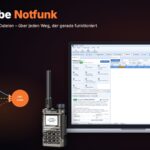
The radio control center puts everything on one page: propagation with the MUF of the nearest ionosonde, K-index and solar flux, the band’s spots as a direction circle, panorama, decoder, latest QSOs, a big tuning knob that you turn with your finger, AGC, filter presets, controls, SWR meter, audio spectrum and the antenna selection, which goes straight into the logbook.
Transmit on the sBitx is experimental and off by default. It is only enabled after you confirm a warning. Test first with a dummy load or a matching antenna and low power – RigVibe shuts off above an SWR of 2.5, but that is no guarantee for the final amplifier. On 30 m, FT8 got as far as England this way. Everything about the sBitx in detail, with pictures: sBitx v3 with RigVibe.
🎨 Radio designs and your own skins
You decide how the radio looks: besides the RigVibe design there are replicas of well-known radios, the radio control center, Matrix with falling characters in the waterfall, and scenes such as Synthwave, Space, Neon city, Dragon embers or Rocket launch.
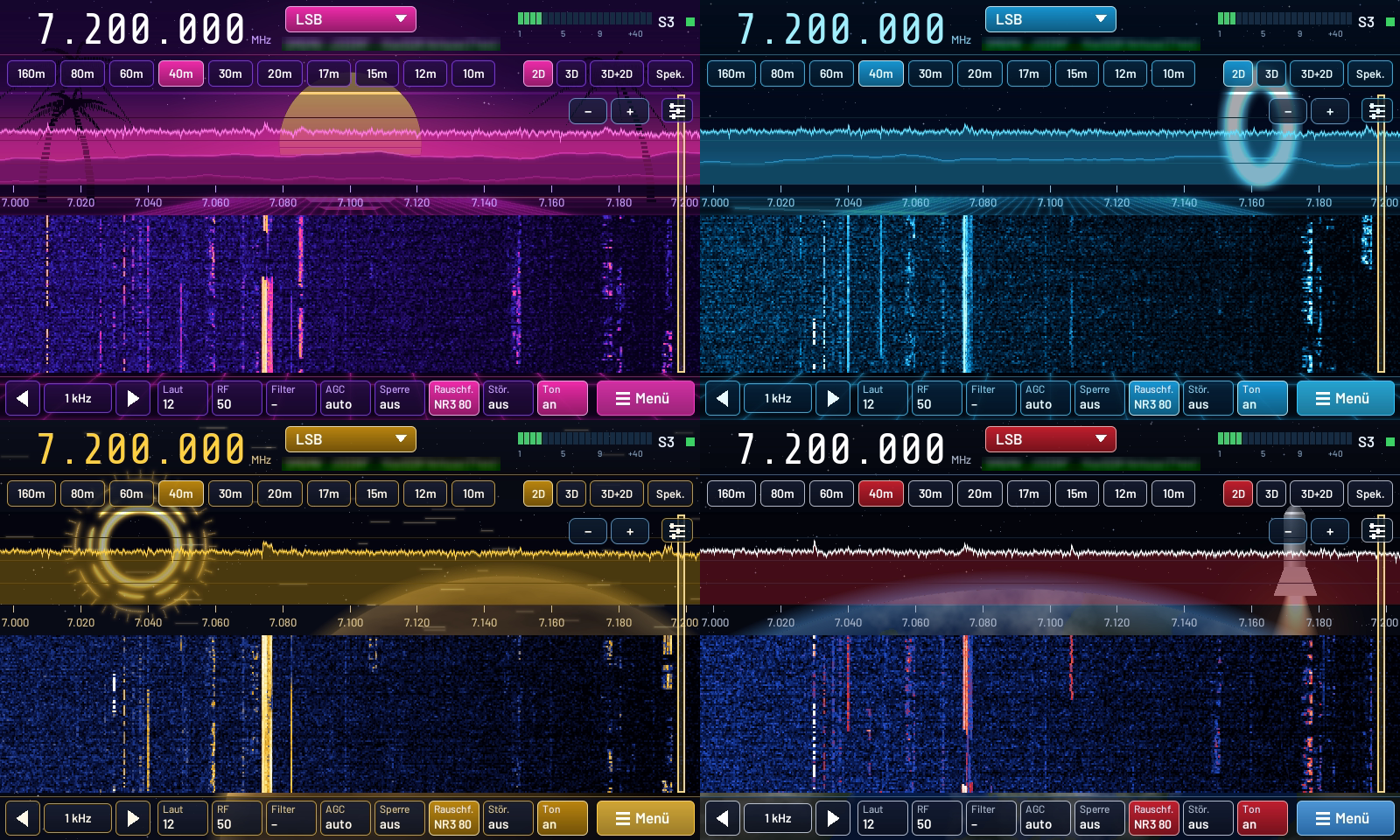
You build your own skins with a small skin.json and your own images: colors, background, an image behind the spectrum, a logo in the waterfall, waterfall colors, a glowing spectrum line. Put it on a USB stick as a ZIP, tap it on the radio – done. The instructions are in the skin folder.
🎛️ Radio control
Through Hamlib, RigVibe supports more than 300 radios – even several at the same time. You get a large frequency display, VFO A/B, split, RIT/XIT, all the controls and switches of your radio, tuning scales per band, memory channels, scanner, macros and a panadapter. The radio can be shared with other programs (e.g. WSJT-X, or via TS-2000 CAT emulation), and with remote audio you can operate from another room or on the go.
You set the transmit level to the sound card separately for each radio – every sound card is different. It applies to digital modes, APRS, SSTV and paging, in the browser just as on the phone. RigVibe only transmits when the audio really arrives at the sound card, and it ends a stuck PTT by itself.
Through the TCI interface, programs such as Log4OM, N1MM+ or JTDX control the radio directly via RigVibe – including CW text and spots that show up in the waterfall.
S-meter, power and SWR come as real needle instruments – classic illuminated like on older radios, modern dark, as an LED bar or as a crossed-needle meter where you read the SWR at the intersection of the needles. When RigVibe hears digital voice, it shows who is speaking below the frequency, like on a DMR or D-STAR radio: call sign, name, talkgroup.
And if you prefer turning knobs: a MIDI pad or DJ controller becomes an operating console. The jog wheel tunes, the faders control volume and squelch, the buttons switch PTT, band and mode – set up with a wizard in one minute, without any drivers.
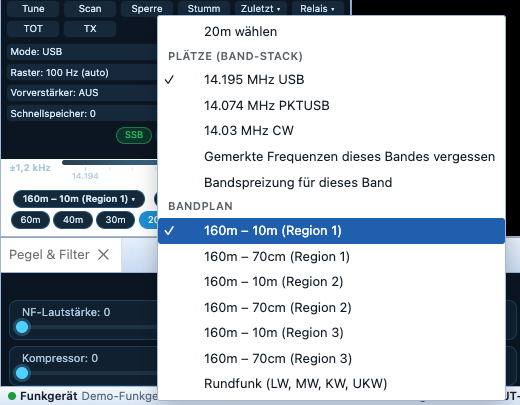
Band stacks: The band buttons remember several slots per band with frequency, mode and filter (up to eight, three by default). When you change band you get the most recent slot, and pressing the same button again pages on – on 20 m you jump between FT8, CW and SSB this way. You see the slots in the button’s right-click menu; it can be switched off in the settings.
📻 Quansheng UV-K1 and UV-K5 V3 fully from RigVibe
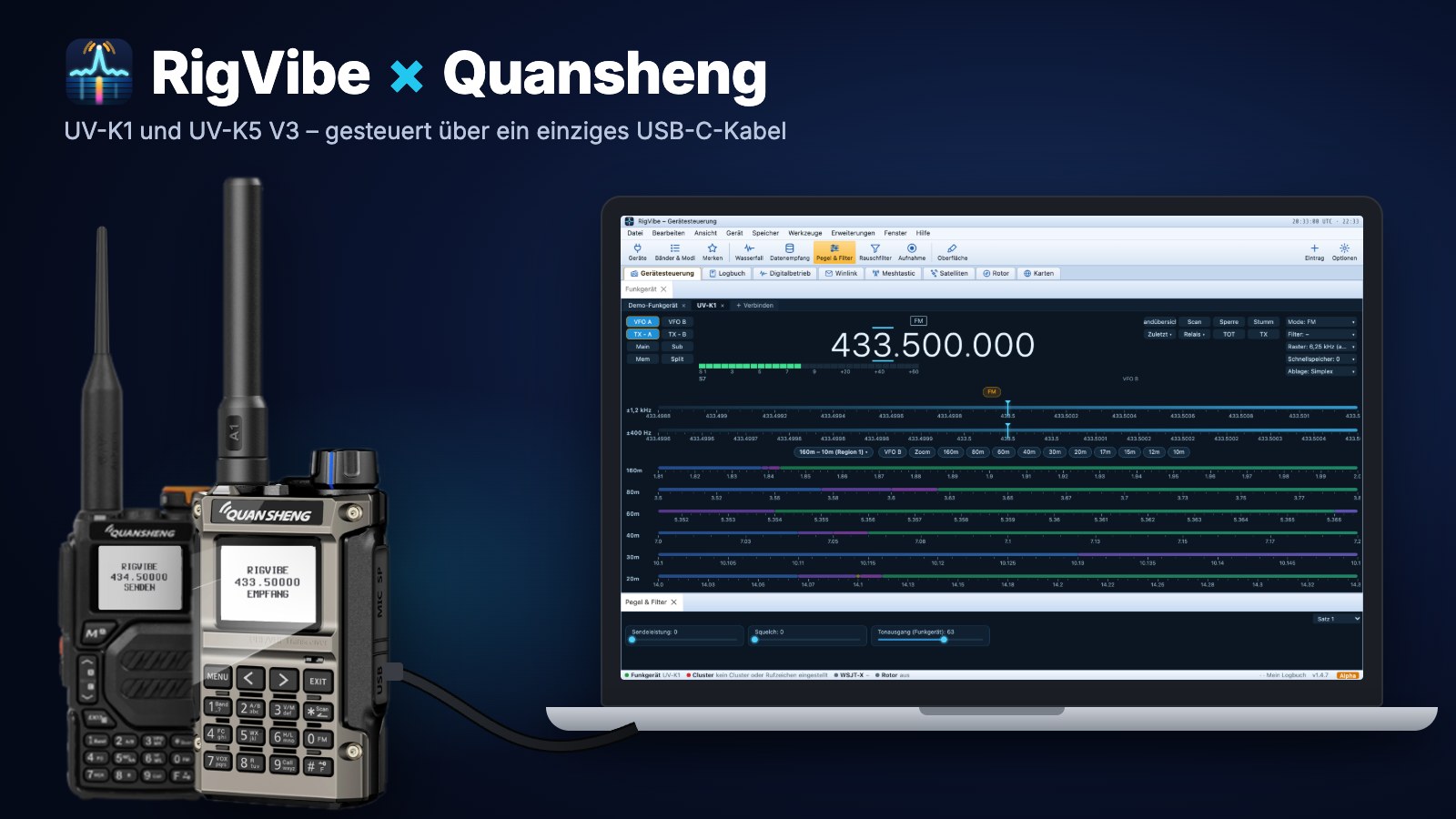
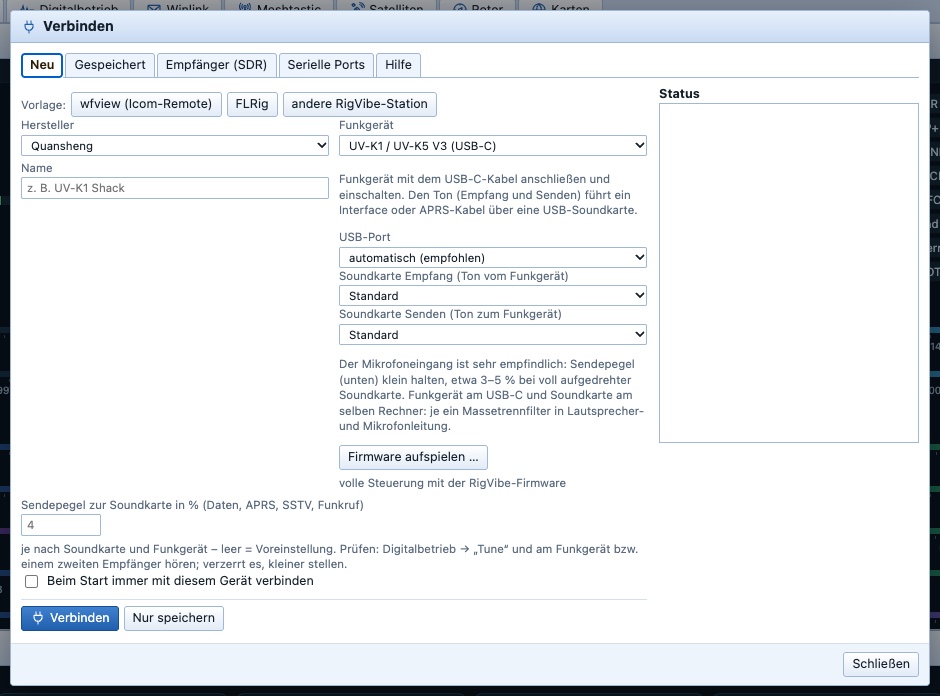
Your cheap handheld becomes part of the station: RigVibe comes with its own firmware – F4HWN Fusion with all its functions – plus control over the USB-C cable. You control frequency, mode, transmit power, squelch and even the transmit key directly from RigVibe, with no VOX or extra cable for the PTT. A band overview shows you what is going on on the band, and the audio output has a fixed level for the sound card – no matter where the volume knob is set.
RigVibe does the flashing itself, step by step: radio off, hold the transmit key, power on, plug in the cable – RigVibe recognizes the radio and flashes the firmware in about 30 seconds. Settings, memory channels and the calibration are kept.
The handheld’s microphone input is very sensitive, which is why the transmit level on the Quansheng is set to 4 % out of the box. Measured with a USB sound card and two ground-loop isolators, APRS arrives cleanly this way – no clicks and no hum.
Just one cable: audio and data run directly over USB-C – no sound card, no APRS cable, no interface. APRS, packet, SSTV, KG-STV, RTTY, PSK, Olivia and many other modes work immediately this way. RigVibe also flashes new firmware over the cable, without any key presses.
The little handheld even does FT8, FT4 and JS8 in USB – directly with the transmitter, like a big SSB station, in fine steps via the radio chip’s FSK unit – and sends real CW. Over a wideband path the radio chip’s signal arrives unfiltered over USB-C. With that, RigVibe reads 9600-baud packet, POCSAG paging, as well as ships (AIS) and weather balloons directly from the handheld. Extensions (plugins) can use the Quansheng in both directions over USB-C under certain conditions – what they do with it is up to the respective extension. I have tested text, image and data modes over USB-C in both directions over the air. How all of this works, I show step by step in a separate article, RigVibe and the Quansheng handhelds (German).
📶 Nearby repeaters, band scan and search scan
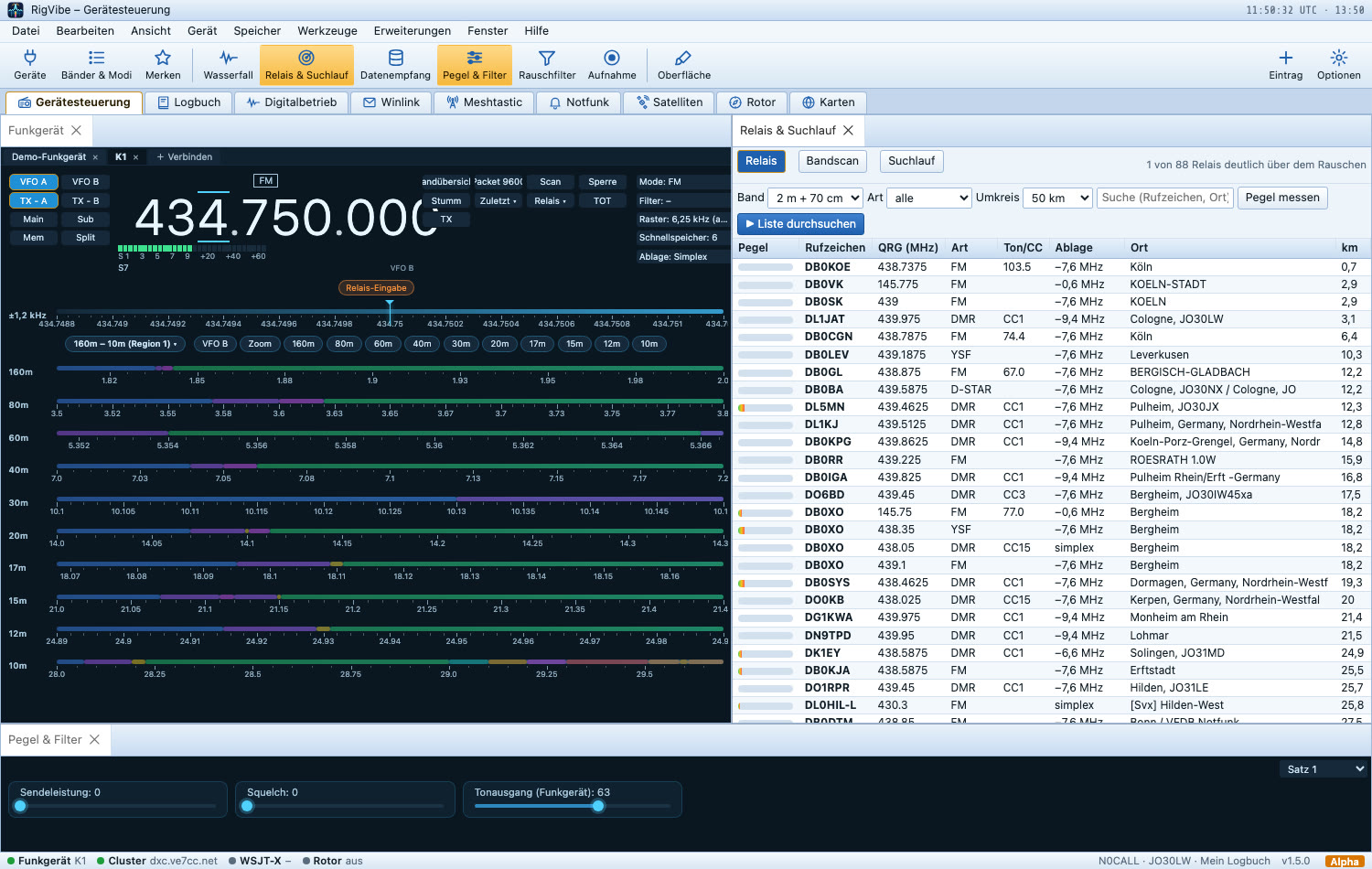
Especially with a handheld that has no waterfall, you want to know quickly where something is going on. The Repeaters & Scan window shows all repeaters nearby with mode, repeater offset and tone – one click tunes, and for digital voice RigVibe reads along right away. The band scan measures the whole 70 cm repeater band with the Quansheng in about two seconds and lists what is transmitting right now. And the search scan goes through the repeater list or your own frequencies and stops where someone is on the air – like a scanner.
🧭 Waterfall, spectrum and band plan
The 3D waterfall now runs in the same direction as the 2D waterfall: new lines arrive at the back and flow toward the front – it looks like a real waterfall.
If you jump to another band segment or a known digital frequency, RigVibe sets mode and filter itself – according to the IARU band plan for your region. A frequency list for FT8, FT4, JS8, WSPR, PSK31, RTTY, Olivia, SSTV, FreeDV and CW QRP saves you the searching.
Waterfall with frame: The passband appears as a frame in the waterfall and adapts to mode and filter. A click on the signal places the frame exactly over it. When you zoom in, the resolution gets finer, and the scale and waterfall follow.
3D and 2D together: Besides 2D and 3D there is the 3D+2D view: at the top the filled landscape of the latest lines in perspective (newest line in front at full width, older ones receding, a level scale on the left), below it the scale and the familiar waterfall – on the same frequency axis, so a peak at the top sits exactly above its trace at the bottom. Zooming, panning and clicking work in both parts. The 3D view runs smoothly in step with the screen refresh; the default “Spectrum” colors (blue, green, yellow, red) can be changed in the settings.
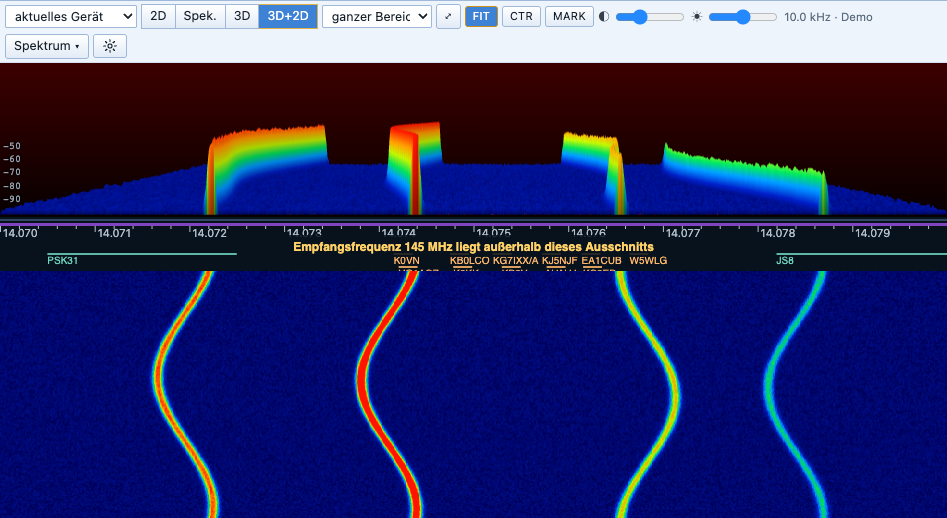
You change the size of spectrum and waterfall with a handle between the parts, one button shows only the spectrum, and you drag the edges of the passband with the mouse (with an SDR the filter follows immediately). The switches FIT (keep adjusting the level), CTR (keep the frequency centered) and MARK (label the strongest signals with their frequency) and seven more color palettes make the waterfall your own. Everything can be shown or hidden individually in the settings.
Spots from PSK Reporter: If you want (off by default), RigVibe shows in the waterfall who was heard on pskreporter.info within the visible section in the last ten minutes – FT8, FT4, WSPR, PSK31, JS8 – with mode, SNR and receiver in the tooltip; a click tunes to the frequency. In doing so, the visible frequency range (no call sign) goes to pskreporter.info, and I query the service at most every five minutes per section. The picture shows made-up call signs.
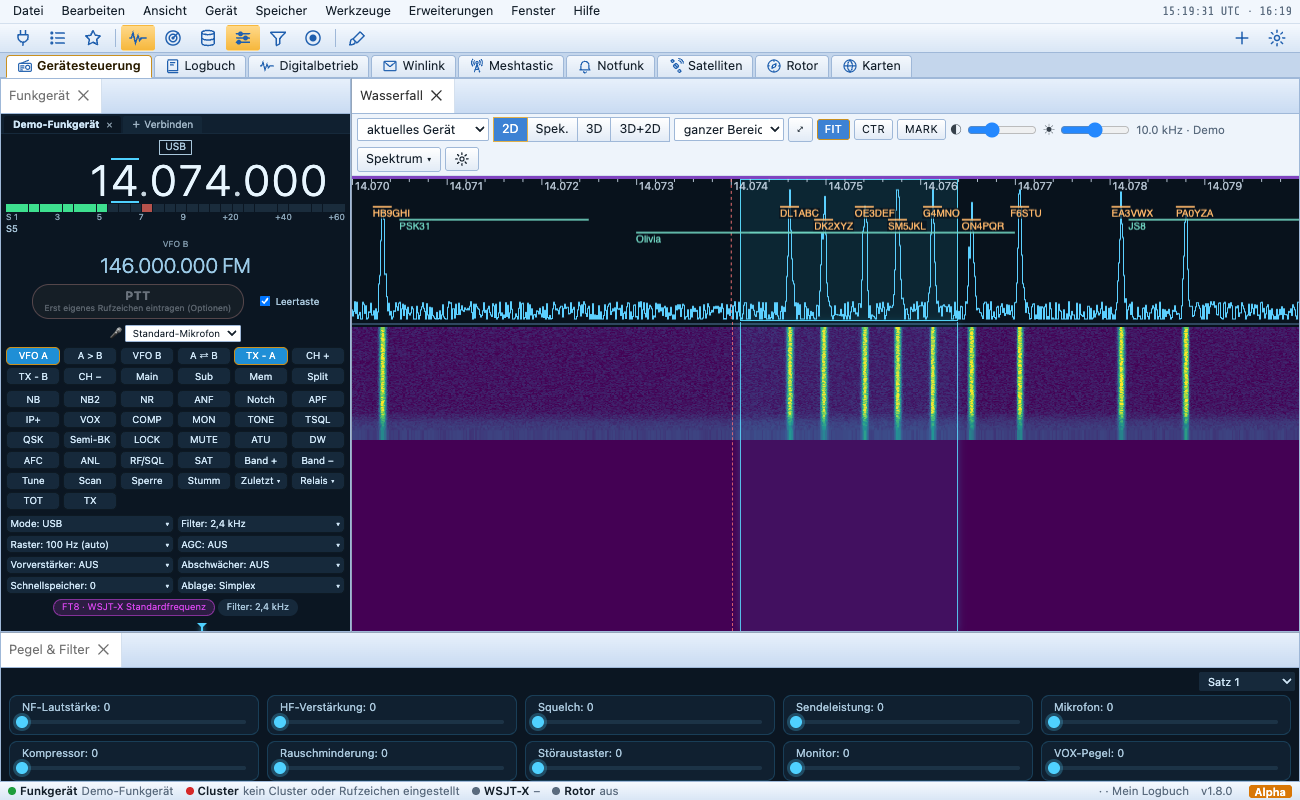
The spectrum above the waterfall runs at 30 frames per second (optionally 60) and glides smoothly – even on my slow Windows laptop.
Spots from the DX cluster as well as from POTA, SOTA and WWFF appear with call sign and country flag right in the waterfall – one click and you are on the frequency. You filter the cluster as you like: exclusion list, DX only, and in a contest RigVibe sounds an alert when a spot would be a new multiplier.
An older notebook with Intel onboard graphics is enough: measured on an eighth-generation Core i5, RigVibe needs only about 14 percent of one processor core with the waterfall running. The waterfall is drawn on the graphics card, at full screen resolution: short signals such as CW dots or FT8 tones stay sharply separated. And every band remembers its own section, contrast and brightness.
More space, more detail: On a large monitor RigVibe shows more windows and columns instead of just scaling everything up, and correspondingly fewer on the laptop – with its own arrangement for each screen size.
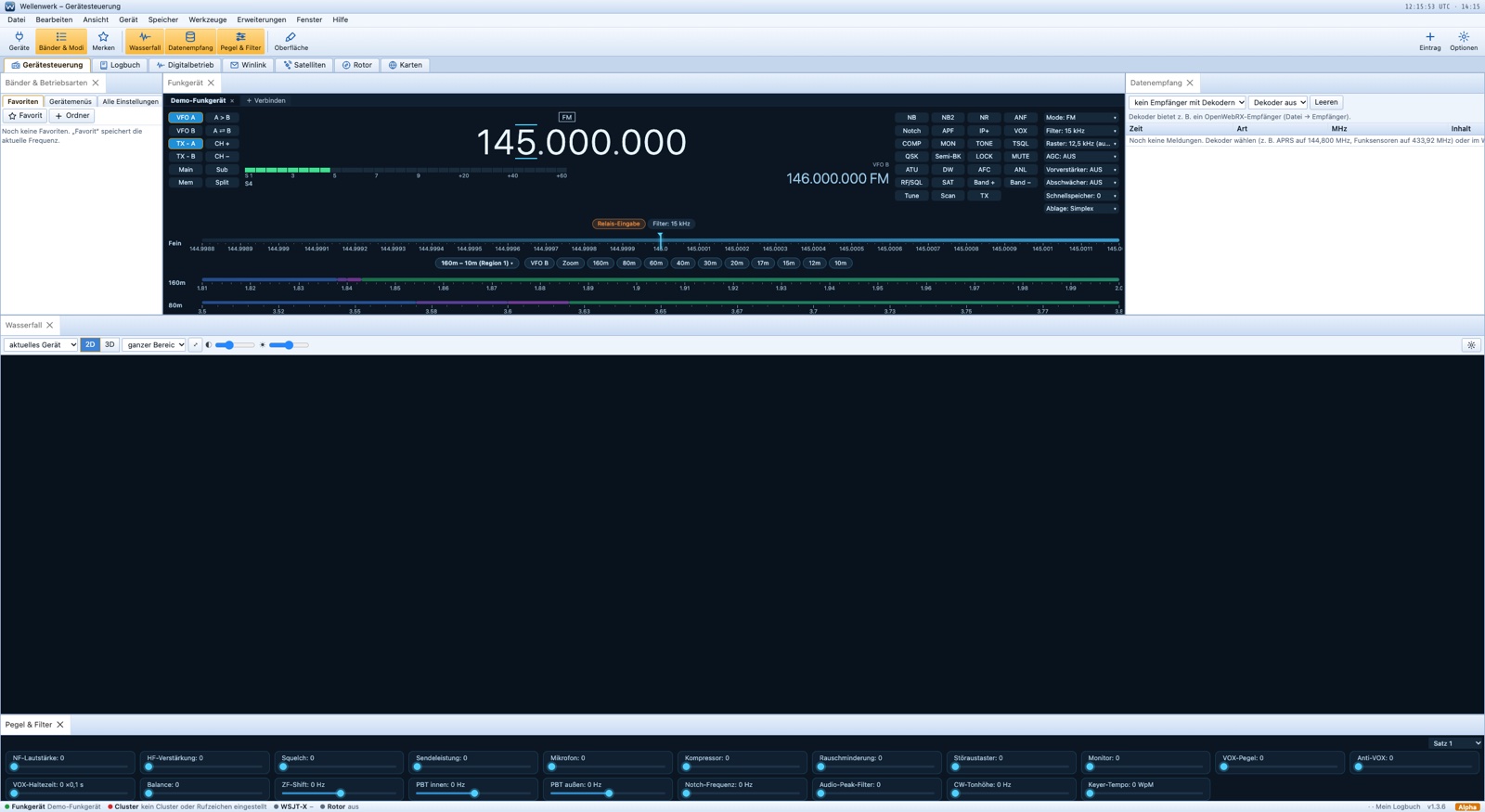
Waterfall when switching radios: When you switch to another device, RigVibe discards the spectrum trace, waterfall, view and 3D buffer of the old source together and immediately – so trace and waterfall always show the same frequency range, and every device starts with its own picture (2D, 3D, mix and spectrum). If the selected device has no waterfall, “current device” automatically shows the spectrum of another connected device.
3D waterfall zooms along (1.9.0): In the 2D/3D view the second waterfall now follows the zoom, panning, contrast and brightness of the first.
Silent connection between window and service (1.9.0): On a slow computer the service could quietly drop a window from its distribution list after a single send error: waterfall and frequency display froze, and device changes had no effect. The service now sends to each connection in turn, closes it on an error and reports in every 5 seconds. If nothing arrives for 15 seconds, the window rebuilds the connection by itself.
Smoother on slow computers: The animated world maps adjust their frame rate to the drawing time and only create their canvas when they are visible. In a harsh endurance test (tabs, devices and display modes switched every 80 ms), the longest stall on a slow Windows laptop dropped from 3.4 s to about 1 s.
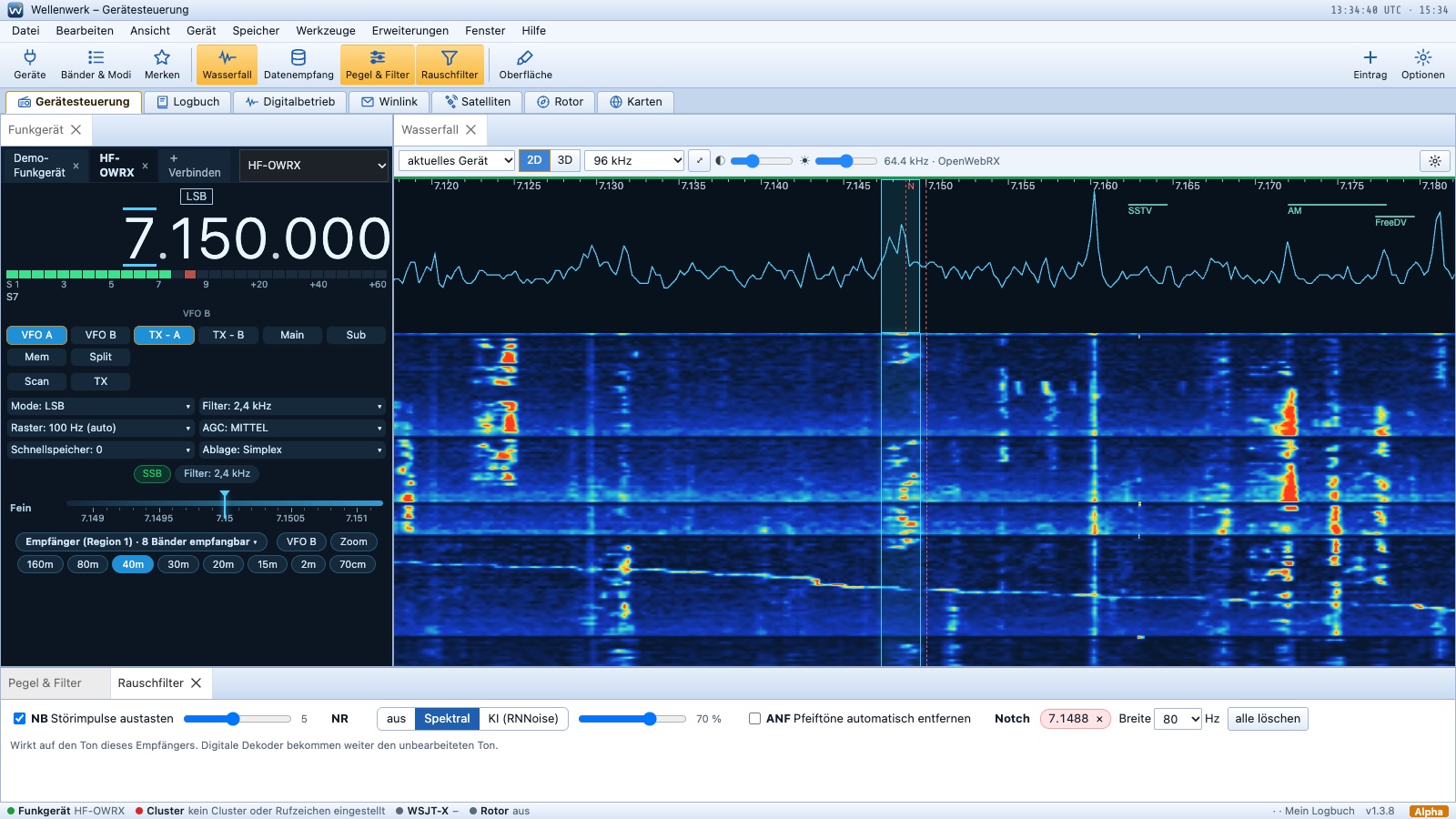
Smooth over the network, too: If a receiver delivers its lines in bursts – such as a KiwiSDR over the internet – RigVibe evens that out, and the waterfall runs steadily. When zoomed in, RigVibe fetches only the visible section so that the signal sits exactly in the filter frame. For the spectrum you can adjust baseline and gain, automatically aligned to the noise floor.
🎧 Noise reduction with AI
Impulse noise blanker, noise reduction either spectral or via AI (RNNoise), auto-notch against whistles and your own notches via right-click in the waterfall – for every audio source, from your own SDR through KiwiSDR and OpenWebRX to a radio whose audio goes through the PC sound card. In a test with speech, the noise in the pauses dropped by 15 to 25 dB. The AI improves speech quality most clearly: with a weak signal (3 dB signal-to-noise) by about 5 dB, at −3 dB by about 6 dB; the spectral filter does less and “gurgles” at high strength. New is the equalizer (audio AGC): it raises quiet stations and lowers loud ones without pulling up the noise in the speech pauses – in the test the level difference between stations shrank from 24 to about 3 dB. The noise blanker in the receiver now bridges blanked sections linearly and additionally checks at 12 kHz; strong impulses are pushed down from 15 to 30 dB below the signal in the test.
In digital modes, RigVibe automatically switches off the noise blanker and noise reduction in the radio and switches them back on for speech.
🎙️ Transmit audio, voice memory and recorder
Your microphone gets a complete processing chain: squelch, equalizer, compressor, speech processor and limiter, plus VOX and monitoring – with ready-made presets for SSB, DX or relaxed round tables. The voice memory records up to six announcements and, if you like, calls CQ in a loop: transmit, listen, transmit again, until someone answers.
With the Record button in the toolbar you record the received audio – directly from the receiver or from the radio via the sound card input. Every recording is saved with frequency, mode and device, can be named and can be played back over the speaker. Or you play it on the air and show the other station how you sound at your end – with PTT as in the voice memory, Esc cancels.

📡 Digital modes, digital voice and FreeDV
Several radios at once, each in its own mode: In digital modes every radio has its own session with its own mode, its own input and its own receive text. If you switch radios, the others keep running – PSK31 on one, RTTY on another. A bar shows the sessions in the background: a click switches to that one, the speaker routes its audio to you, ■ ends reception. The automatic FT8/FT4 sequence only runs on the selected radio.
An SDR as ears for the radio: If an SDR follows your radio as a panadapter, you choose “Listen via SDR” under Input in digital modes. The radio then receives with the SDR – you see the whole band and several signals at once – and transmits itself as usual. When transmitting, RigVibe does not decode your own signal. Important: set the radio to USB, the SDR follows the mode. With real hardware (K1 plus HackRF) this has not been tried yet, only with simulated devices.
Clearer to operate: The red button that actually aborts transmitting used to be called “RX Stop” – now it is “Abort transmit”. Also “Start/stop receive”, “Squelch”, “Tuning tone”, explanatory tooltips and understandable messages when the sound card is missing or locked. Under Help → Why no sound? RigVibe checks step by step why there is no audio. FreeDV is now also in the list of modes, USB-C can be selected as input and output, and RigVibe detects SSTV more reliably during fading.
On 4K screens RigVibe shows more at once: “About me”, device status and sweeper sit next to reception, with emergency communications the log and radio paths below the messages, with Winlink the chat next to the reading window.
The signal detection recognizes SSTV after only four seconds, plus FreeDV RADE and the other FreeDV types by their symbol rate. If an SSTV picture is already running, RigVibe recognizes the mode from the line rate and decodes from there – even without the header at the start of the picture.
RigVibe handles FreeDV RADE – digital voice transmission with a neural network that still sounds natural even with a weak signal. The FreeDV Reporter shows who is currently active on FreeDV.
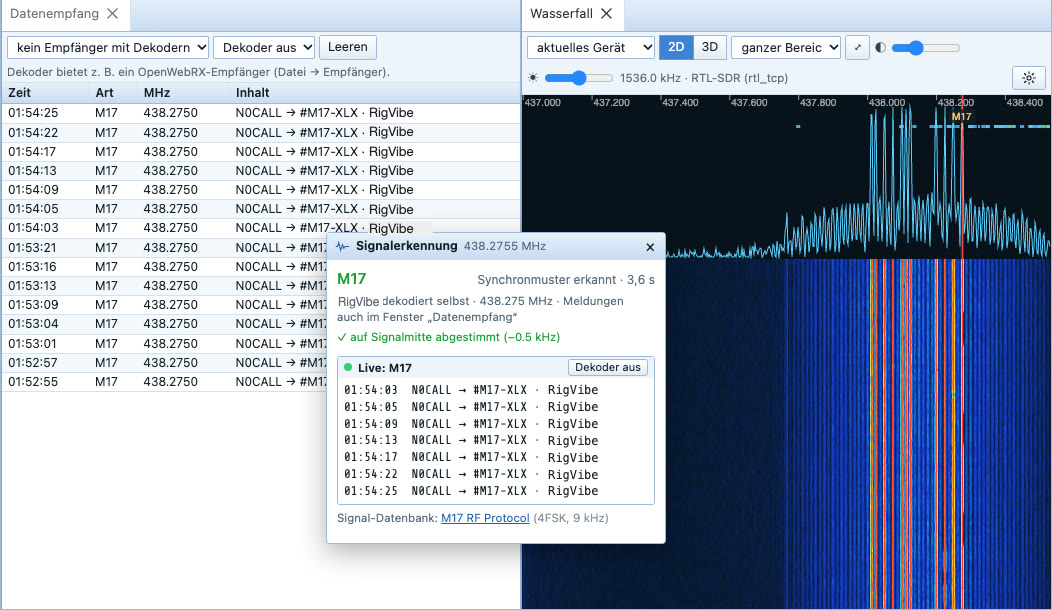
RigVibe decodes DMR, D-STAR, YSF and M17 by itself even when an OpenWebRX server does not offer the matching decoder – and with the Digital Voice mode even from the audio of a sound card or directly from the Quansheng over USB-C: RigVibe recognizes by itself what is being transmitted and shows call sign, talkgroup and repeater. RigVibe also plays M17 audibly (Codec2) – and transmits it too: you speak, RigVibe encodes in real time and passes the signal to the radio through the sound card.
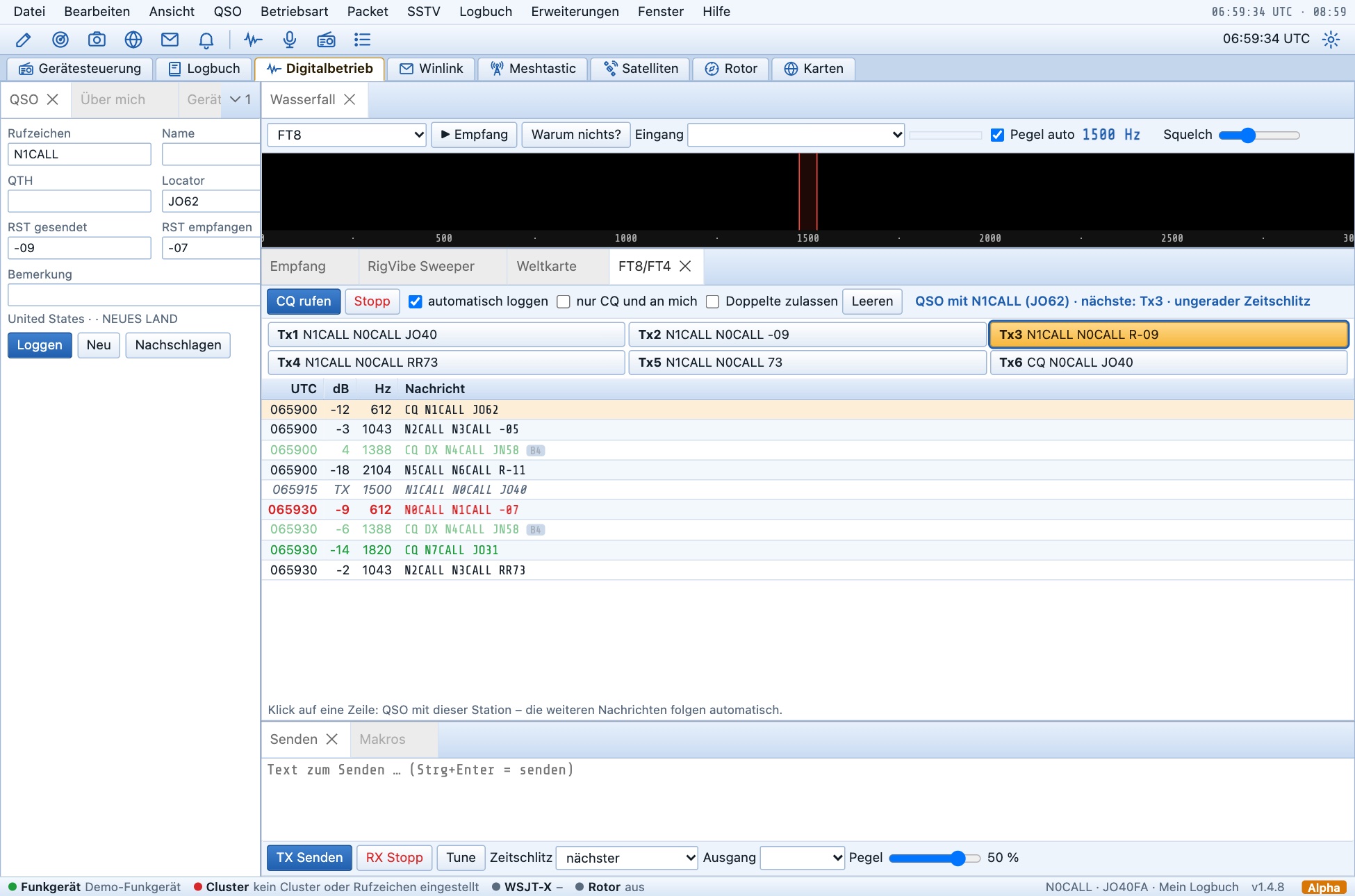
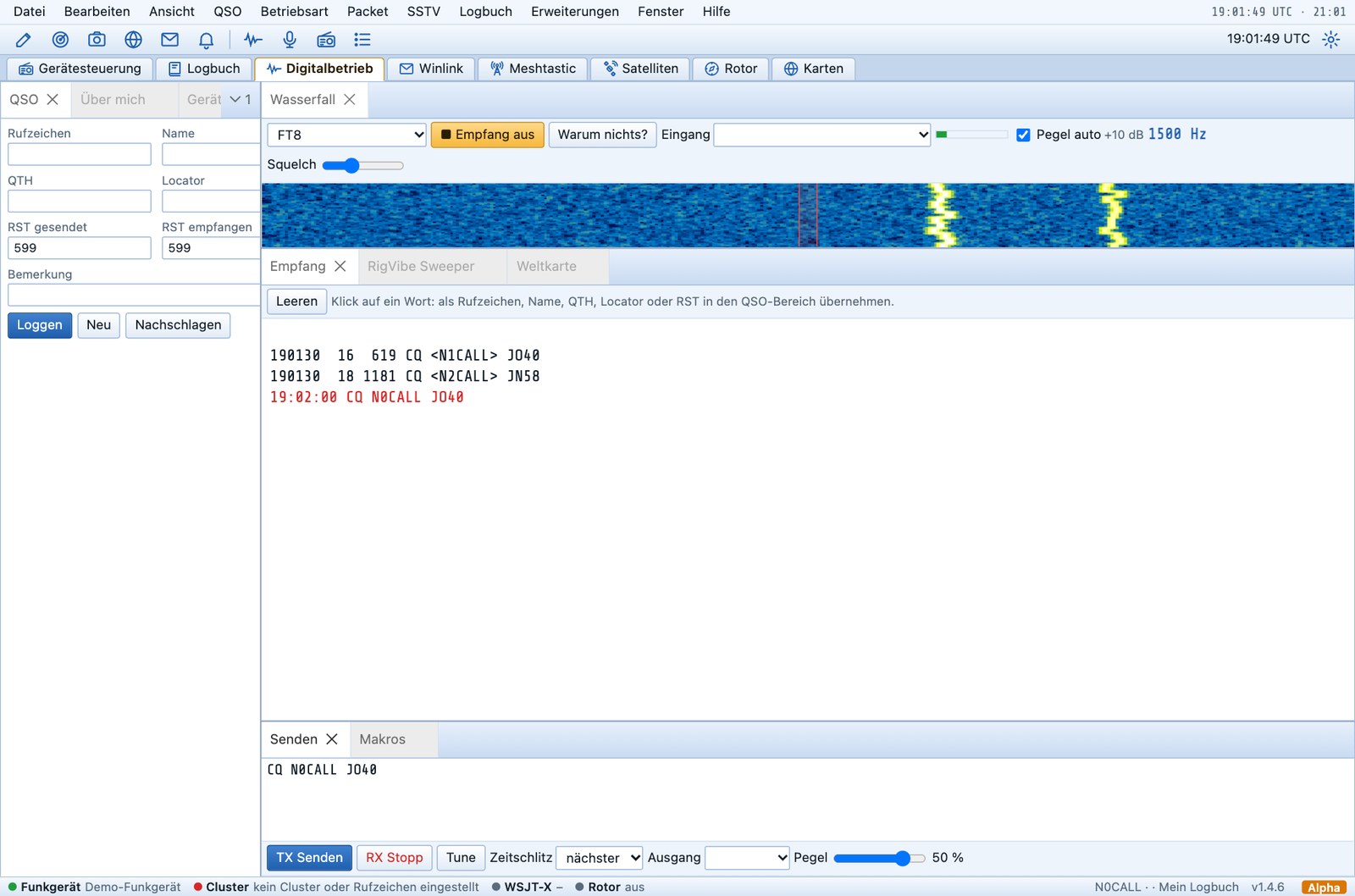
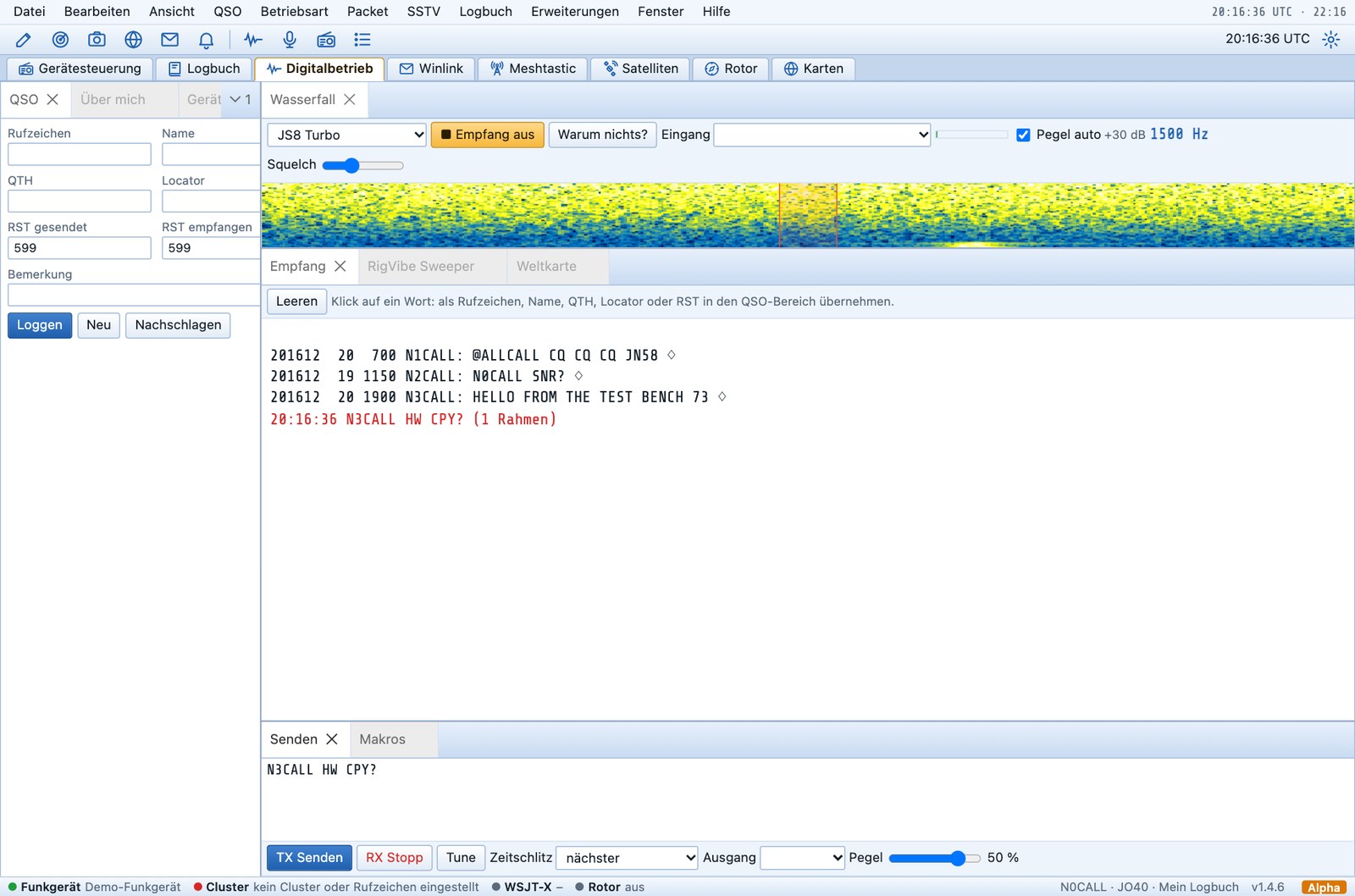
FT8 and FT4 now run directly in digital modes: every 15 seconds the stations heard appear, and to reply you type the text – RigVibe transmits right on time in the next time slot. Also new is JS8, the chat mode of JS8Call, in all four speeds: CQ, direct requests and free text; RigVibe assembles multi-part messages automatically.
QSO with one click: In the FT8/FT4 window you simply click a station that is calling CQ – RigVibe does the rest. Call, report, confirmation and 73 each go out in the right time slot, matching what the other station sends back. At the end the QSO is in the logbook with reports and locator. With Call CQ it also works the other way around: RigVibe calls CQ and answers the first caller. Stations that are already in your log on this band in this mode are shown dimmed with B4. When calling CQ it skips them, and if you click such a station it asks first – so you never call anyone twice. For contests you switch this off with Allow dupes. This works with any radio – and also with the little Quansheng.
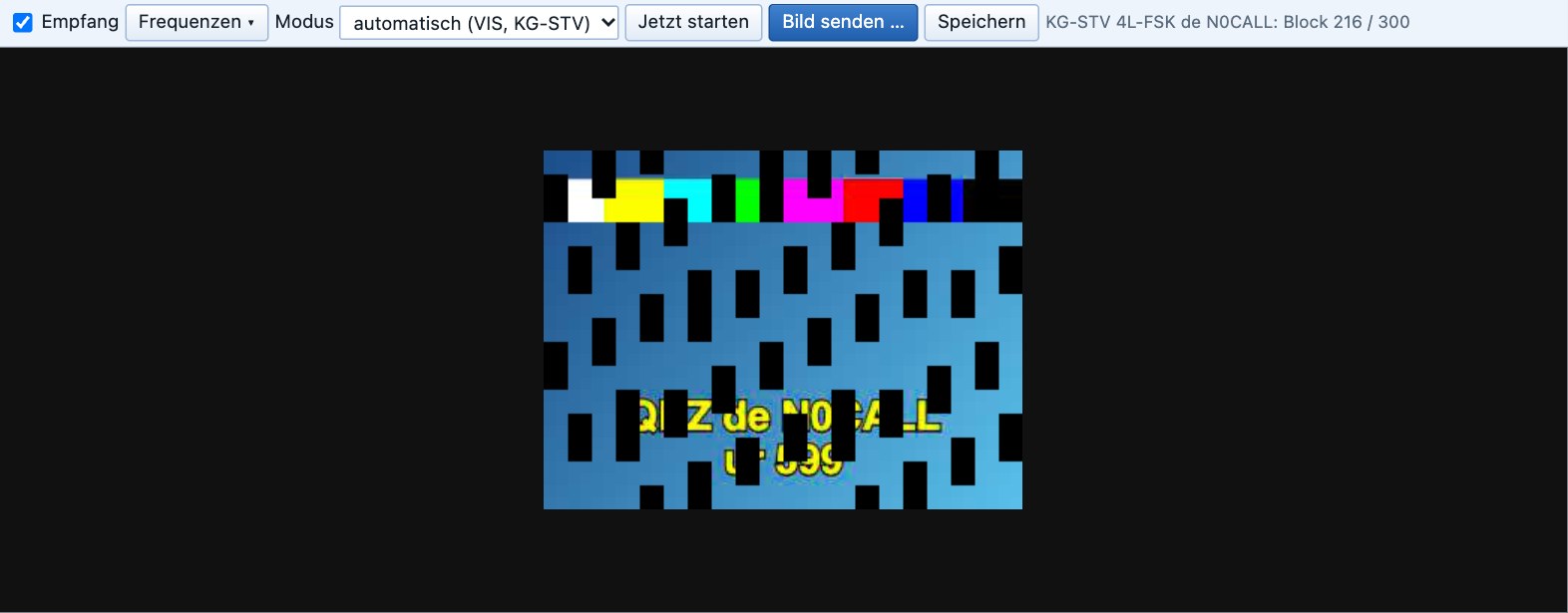
With KG-STV you send and receive digital pictures – the mode also known from the ISS. Small image blocks with error protection, so the picture becomes complete piece by piece even with a weak signal.
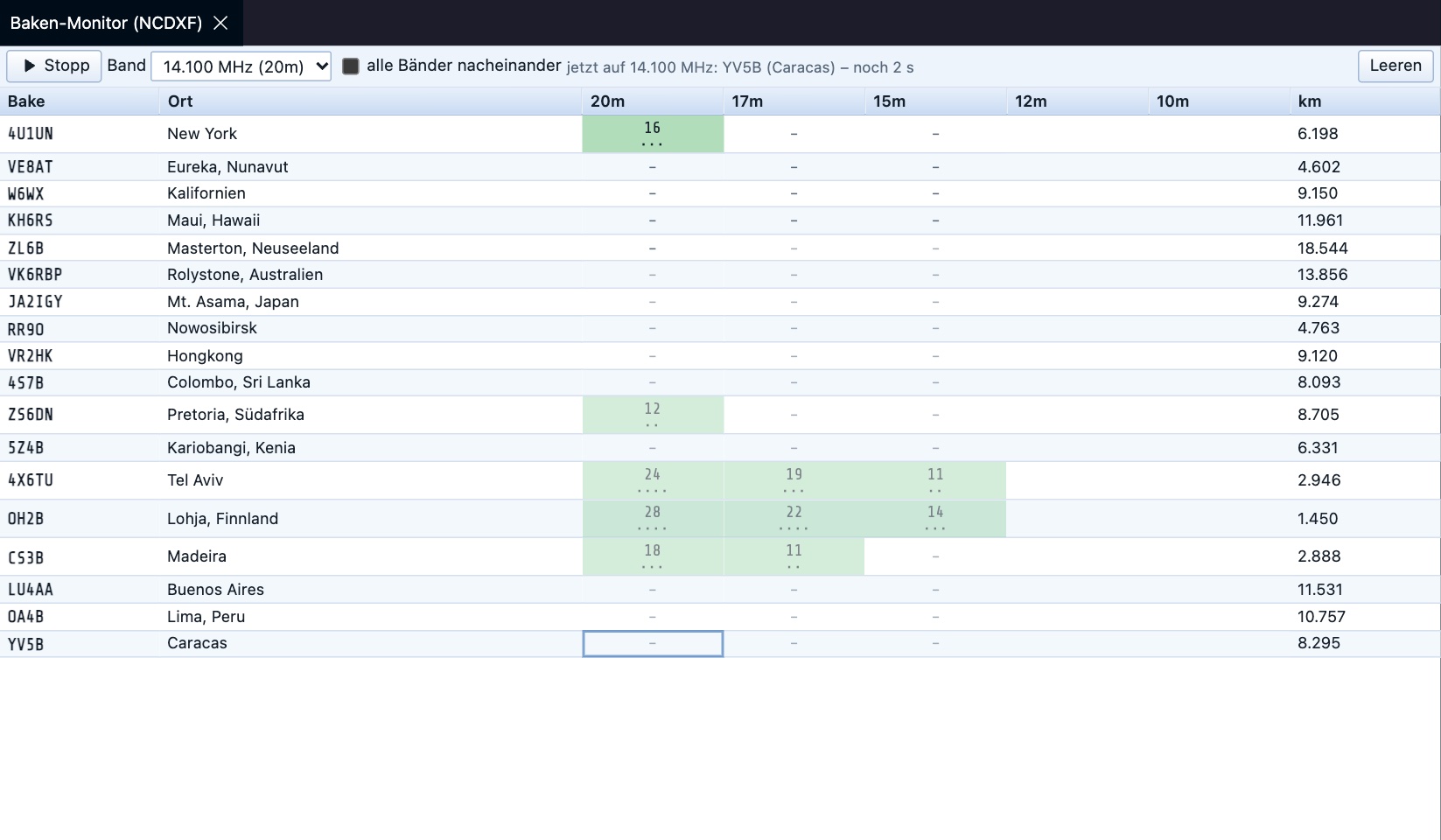
The beacon monitor listens to the 18 NCDXF/IARU beacons: you see live which beacon you hear with what signal-to-noise ratio and down to which power level – if you want, all bands in turn. That way you know at a glance where the band is open to right now.
WebSDR as input: If you are listening through a receiver from websdr.org, digital modes take its audio directly as input – RigVibe then decodes APRS, RTTY, FT8 and so on without any detour through virtual cables.
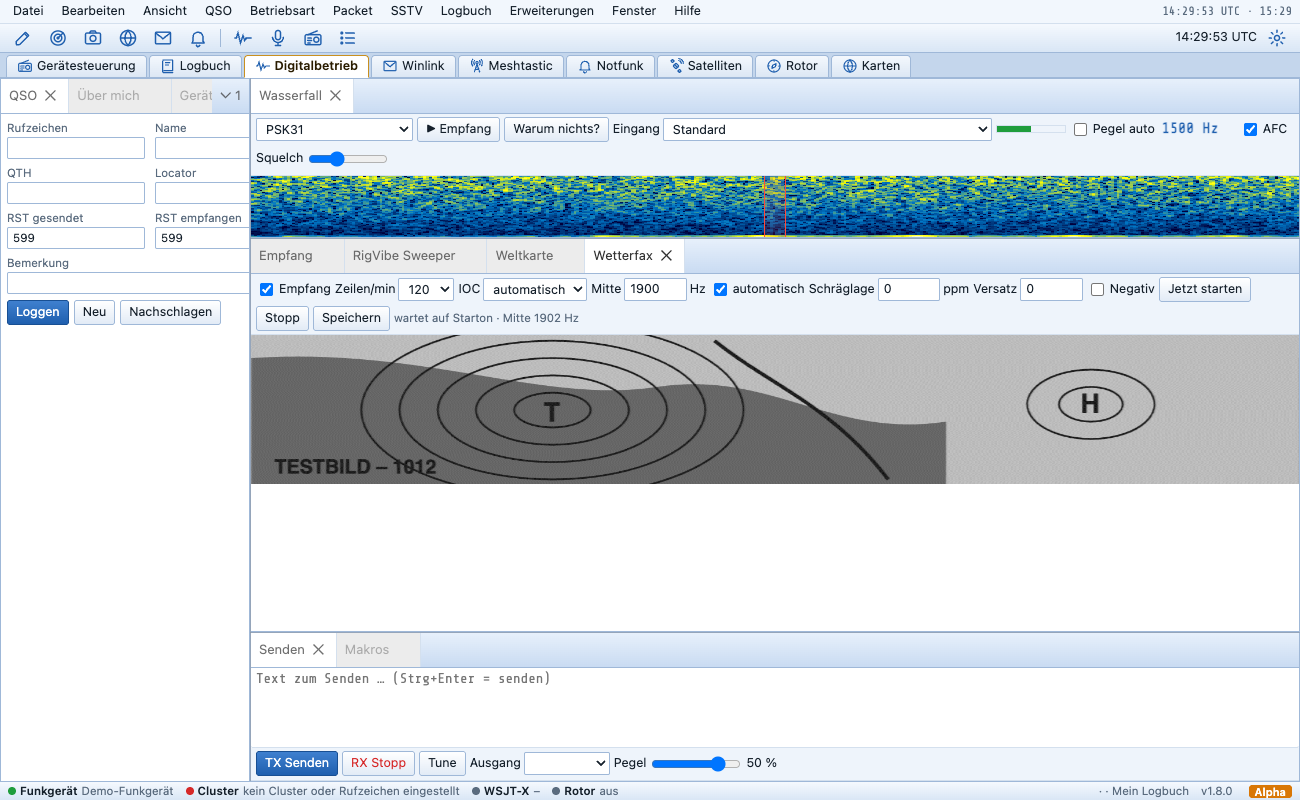
Weather fax (WEFAX): RigVibe receives weather charts and satellite images from the weather services on shortwave in a window of their own: it recognizes the start tone, measures the line start and the middle of the signal in the phasing signal, and writes the picture line by line until the stop tone. You set lines per minute, IOC, center and the slant of the sound card; finished pictures end up in the gallery. So far I have tested this with artificial signals and an artificial weather chart – not yet with a real transmitter.
🔌 Your own SDRs: RTL-SDR, HackRF, Pluto, Hermes Lite 2
RTL-SDR (including the V4 on shortwave) and HackRF One run directly on USB, with no additional program. If you are licensed, you can also transmit with the HackRF One and the Hermes Lite 2 – microphone, FT8 and other digimodes, SSTV. RigVibe only transmits within the amateur radio bands. With the HackRF, a harmonic filter belongs on the output.
The ADALM-Pluto also works over the network and is found automatically. On Windows, RigVibe sets up the driver for RTL-SDR sticks at the push of a button – again with no additional program.
Skimmer: With your own SDR, RigVibe reads up to twelve CW, PSK31 and RTTY signals at the same time and shows call sign, speed and text. The call sign also appears as a marker on the signal in the waterfall. I tested this with artificial signals and with real radio (CW and RTTY from a Quansheng UV-K1 on 70 cm, received with the HackRF); PSK31 only with artificial signals. The first characters of a transmission are often lost while the decoder settles.
More receivers (1.8.4): RigVibe now also reads a SpyServer (Airspy, RTL-SDR and Airspy HF+ on the network) and SDRplay via rsp_tcp, and it plays back IQ recordings from files (WAV from SDR#, SDR++ or HDSDR as well as raw files) – for practice and analysis without a radio. For all receivers with an IQ stream there is a second receiver with VFO A/B: VFO A in your left ear, VFO B in your right. The Hermes Lite 2 gets a band decoder for its switching outputs (filters and antenna switch). To be honest: SpyServer has only been tested against a simulated server (the public ones were not reachable from here); rsp_tcp and the band decoder were not tested on real hardware.
SoapySDR: Airspy, SDRplay, LimeSDR, RX-888 and everything else SoapySDR knows are added as a new receiver type (receive only). The ready-made packages include SoapySDR with drivers for Airspy (R2/Mini) and Airspy HF+; for other devices you have to install the driver module yourself. So far I have only tested the HackRF through it – with Airspy I only checked that the driver modules load.
Raspberry Pi: There are now packages for Linux ARM64 (Raspberry Pi 4/5 with a 64-bit system), as a program and as a server service. They are built and tested at build time, but not yet on real Pi hardware.
FM broadcast in stereo: If a station sends the 19 kHz pilot tone, RigVibe plays FM broadcast in stereo; without a pilot or with noise it stays mono. So far this has only been tested with artificial signals.
With your own SDRs such as RTL-SDR, HackRF or Pluto, RigVibe also reads radio sensors: weather stations, thermometers, tire pressure, smoke detectors and radio meters.
QO-100 with the Pluto: With an ADALM-Pluto and an LNB, RigVibe becomes a QO-100 station: you tune on the downlink, transmission happens automatically on the uplink – and you see your own signal in the waterfall at the same time. RigVibe compensates the LNB drift itself via the beacon, the transponder’s band plan is built in, and the QSOs go into the logbook as satellite QSOs.
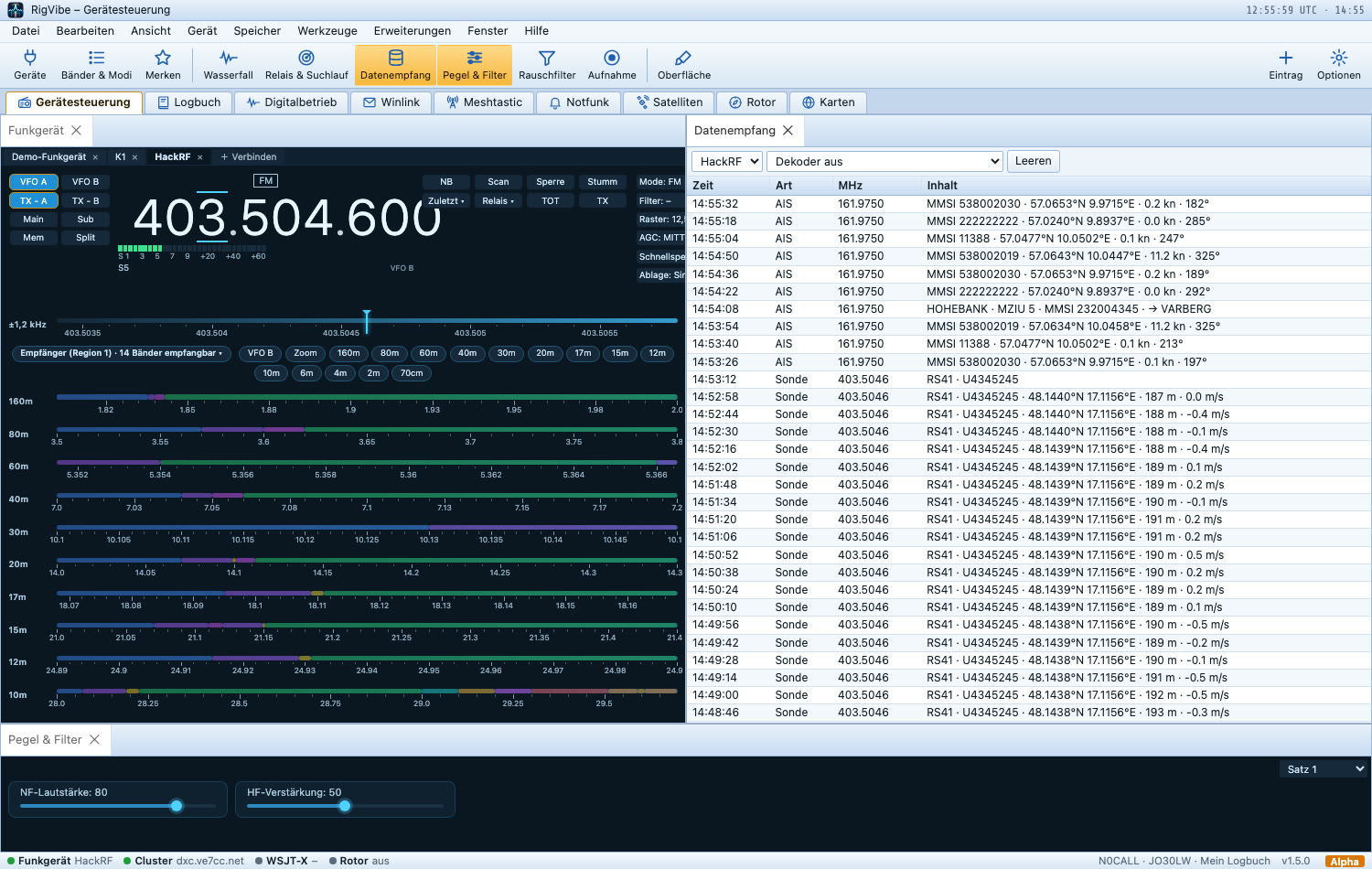
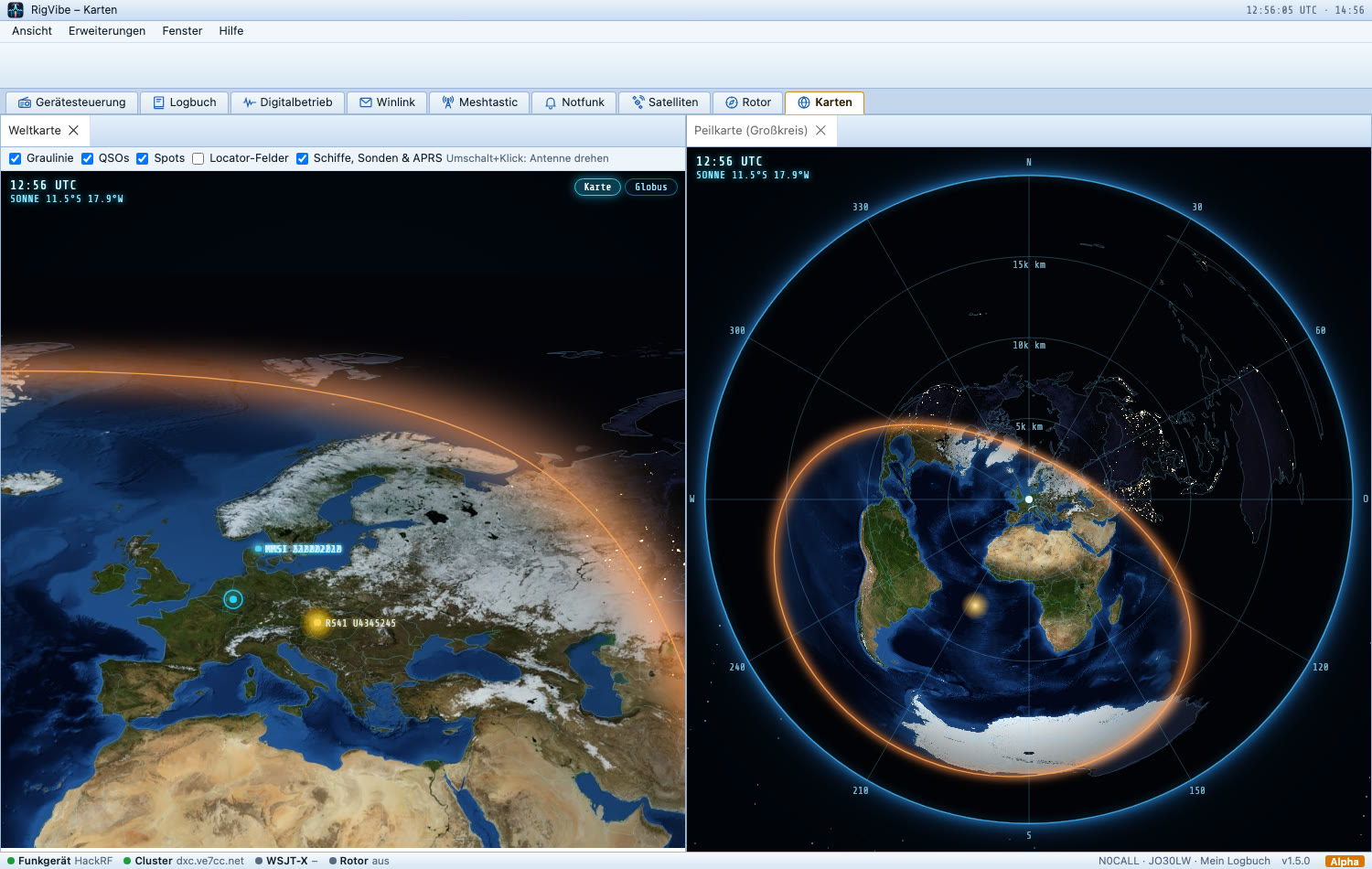
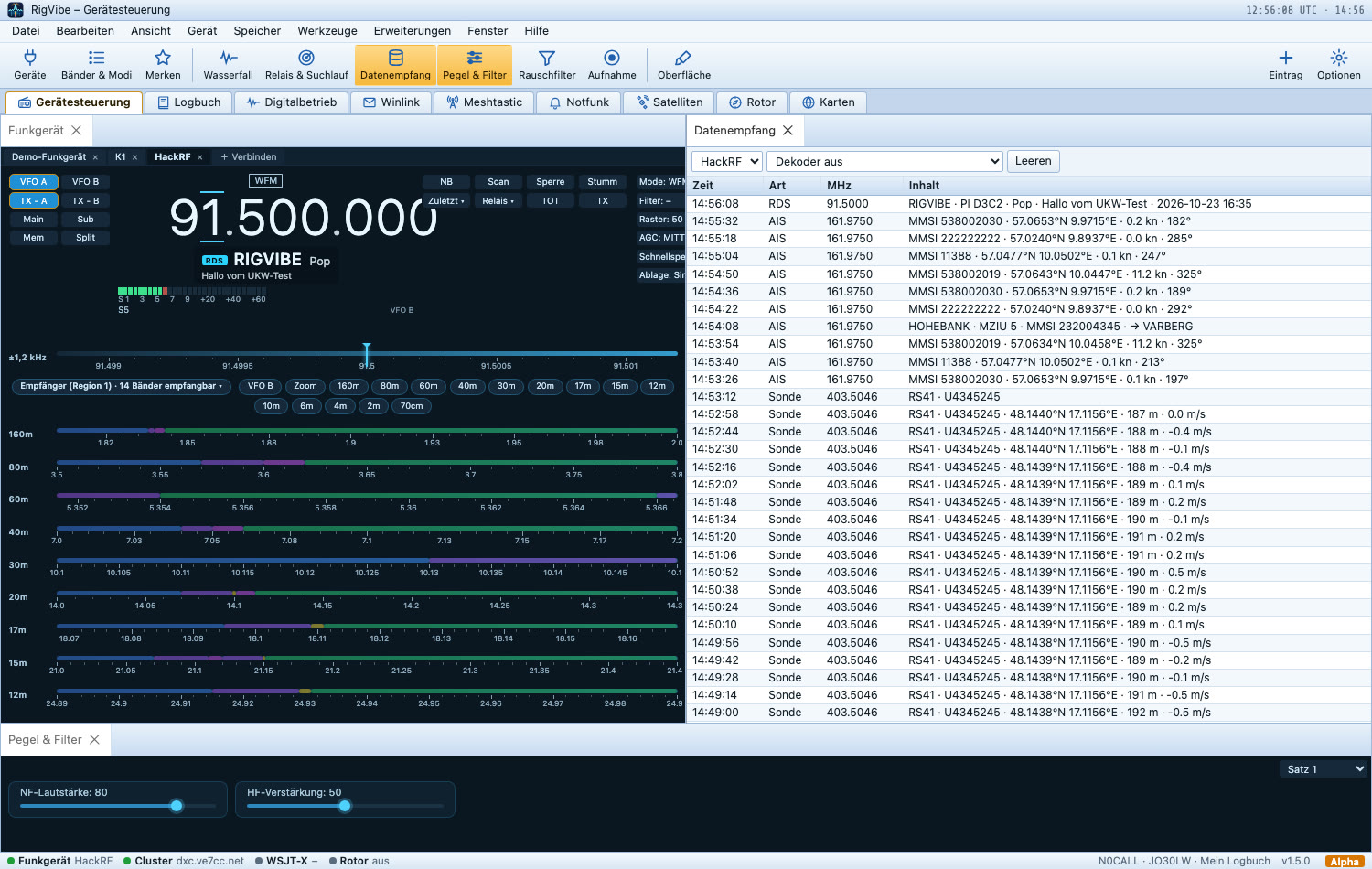
Ships, weather balloons and FM radio: With RTL-SDR, HackRF or Pluto, RigVibe decodes AIS – position, name and destination of ships – and the weather service’s Vaisala RS41 radiosondes with serial number, position, altitude and climb rate by itself. Everything ends up in the Data reception window and on the world map, with balloons shown with their flight path. And in WFM mode the SDR becomes an FM broadcast radio with full sound and RDS: station name, program type and radio text appear right below the frequency.
📻 DAB+, FM radio text and traffic messages
An RTL-SDR or HackRF also turns RigVibe into a digital radio: scan across Band III, station list, scrolling text, station logo and stereo sound. The same stick receives FM broadcast with RDS – station name, radio text, traffic announcement flag and the announcement itself.
New are the TMC traffic messages that many stations transmit inaudibly alongside: RigVibe shows them in German with road and section (“A 255 · between Dreieck Norderelbe and Hamburg – congestion”) and draws them as a route on a road map. The places come from OpenStreetMap.
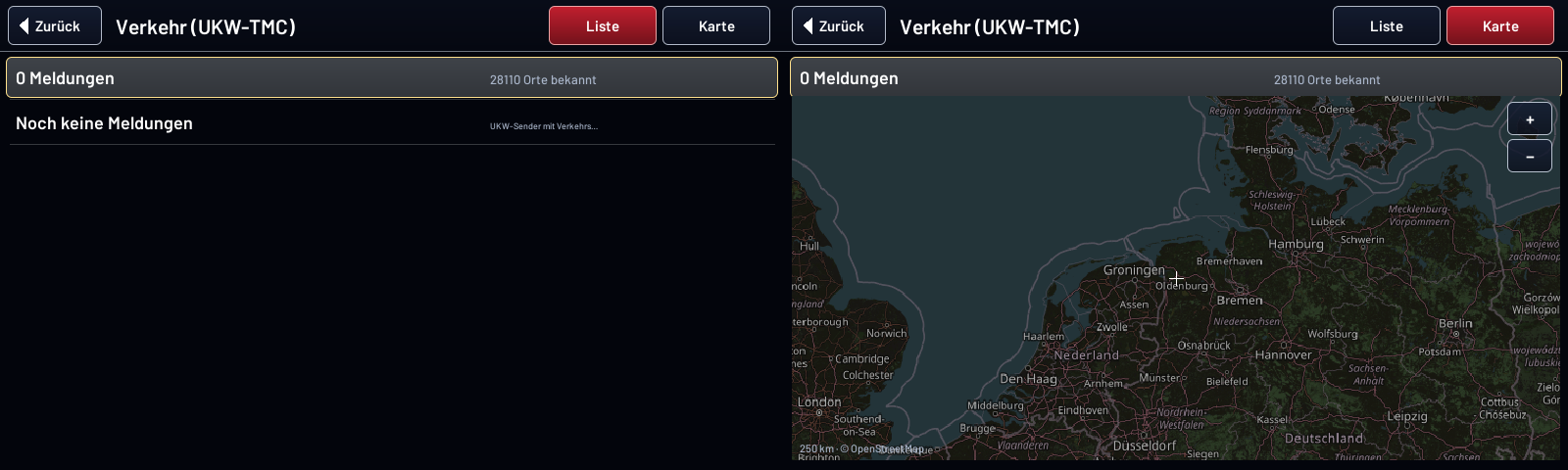
To be honest: DAB+ and the traffic messages are brand new and so far only tested without an antenna or with simulated data. The test against a real transmitter will follow.
✈️ Aircraft and helicopters (ADS-B)
RigVibe decodes the ADS-B messages on 1090 MHz itself: flight number, position, altitude, speed, heading, climb/descent rate and squawk. In the Data reception window choose the “ADS-B” decoder – RigVibe sets the receiver to 1090 MHz by itself (you need at least 2 MS/s, so an RTL-SDR with rate=2400000, a HackRF or a SoapySDR device, plus a 1090 MHz antenna). The aircraft list shows distance and bearing from your station; helicopters are at the top, highlighted in yellow and appear larger on the world map, and on first reception you get a notice with distance and bearing. Aircraft on the apron or at a landing site are recognized too.
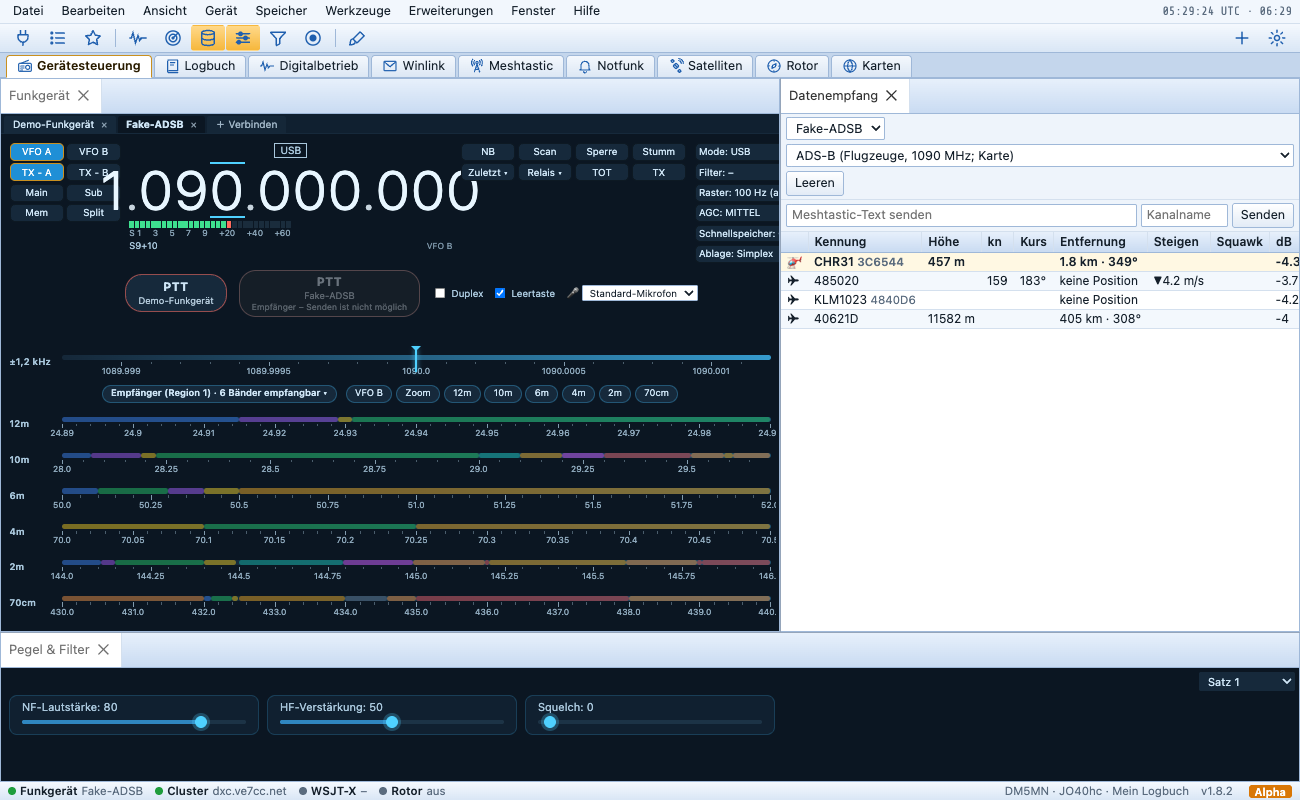
To be honest: the decoder has been tested with known messages, artificial signals at 2 to 4 MS/s and, in the finished program, against a simulated receiver – not yet with real aircraft.
For the Hermes Lite 2 there is also the beginning of PureSignal (adaptive predistortion against intermodulation of the final amplifier), so far only against a simulated tube amplifier: there the third-order intermodulation in the two-tone test drops from −29 to −61 dBc. The feedback channel of the real device is not connected yet.
📍 APRS and packet radio
APRS runs directly in digital modes: a map with all stations nearby, messages with acknowledgment and your own position beacon. There is also a packet chat with which you connect to other stations and mailboxes without any TNC.
The APRS beacon sends more than your call sign: your own text, DOK, your QRV frequency, altitude and a status text. Every radio gets its own audio path, and the automatic level control compensates for how far the volume knob on the handheld is currently turned up.
The packet monitor shows every AX.25 frame like a TNC – including node and mailbox traffic of other stations and readable NET/ROM node lists. The packet frequencies per band are in a selection list according to the band plan, and the demodulator repairs single bit errors – with weak signals considerably more gets through.
APRS, packet chat and packet monitor start reception by themselves when opened. If an extension mode or digital voice was selected before (both mute the normal FM audio), RigVibe ends it and tells you. Through the KISS modem (TCP, port 8001), Xastir, APRSIS32 and Linux AX.25 use RigVibe’s packet modem.
🔔 Who hears me, BrandMeister and CW key
Who hears me? After a CQ call, the logbook window shows which Reverse Beacon Network stations heard you – with frequency, level and speed (CW, RTTY, PSK31, optionally FT8/FT4). Nets remind you before they start with a “Vote now” button.
BrandMeister: Enter call signs, prefixes like DL1* or DMR IDs. RigVibe reads the public Lastheard stream (read-only) and notifies you as soon as one of these stations is active on the DMR network – with name and talkgroup.
CW key with paddles (Iambic A/B) via keyboard, MIDI or on-screen buttons. On the Quansheng UV-K1, RigVibe opens a transmit session before the first dash when “Key active” is on; in the on-air test with the HackRF the elements are accurate to ±1 ms.
🆘 Emergency communications
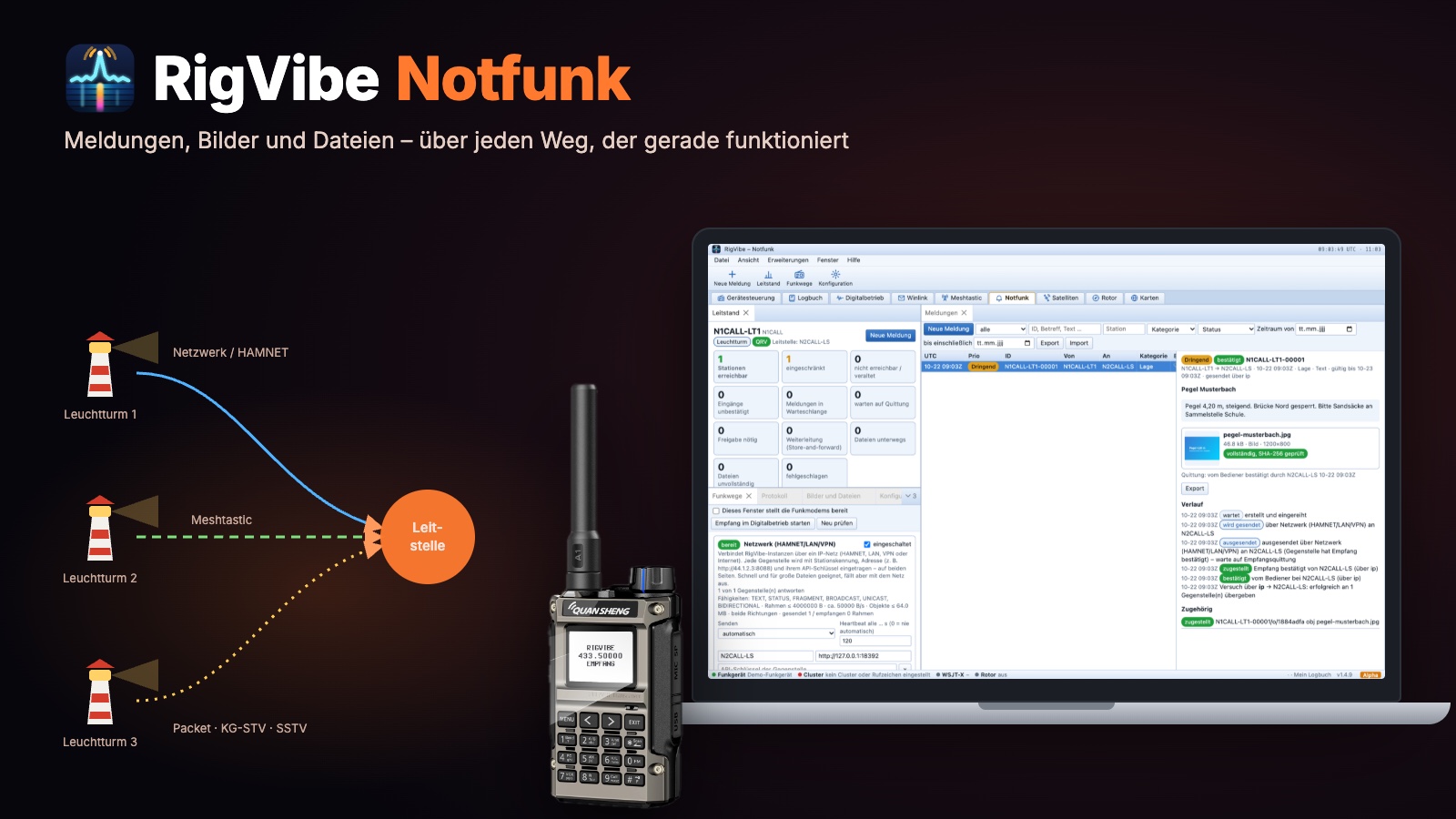
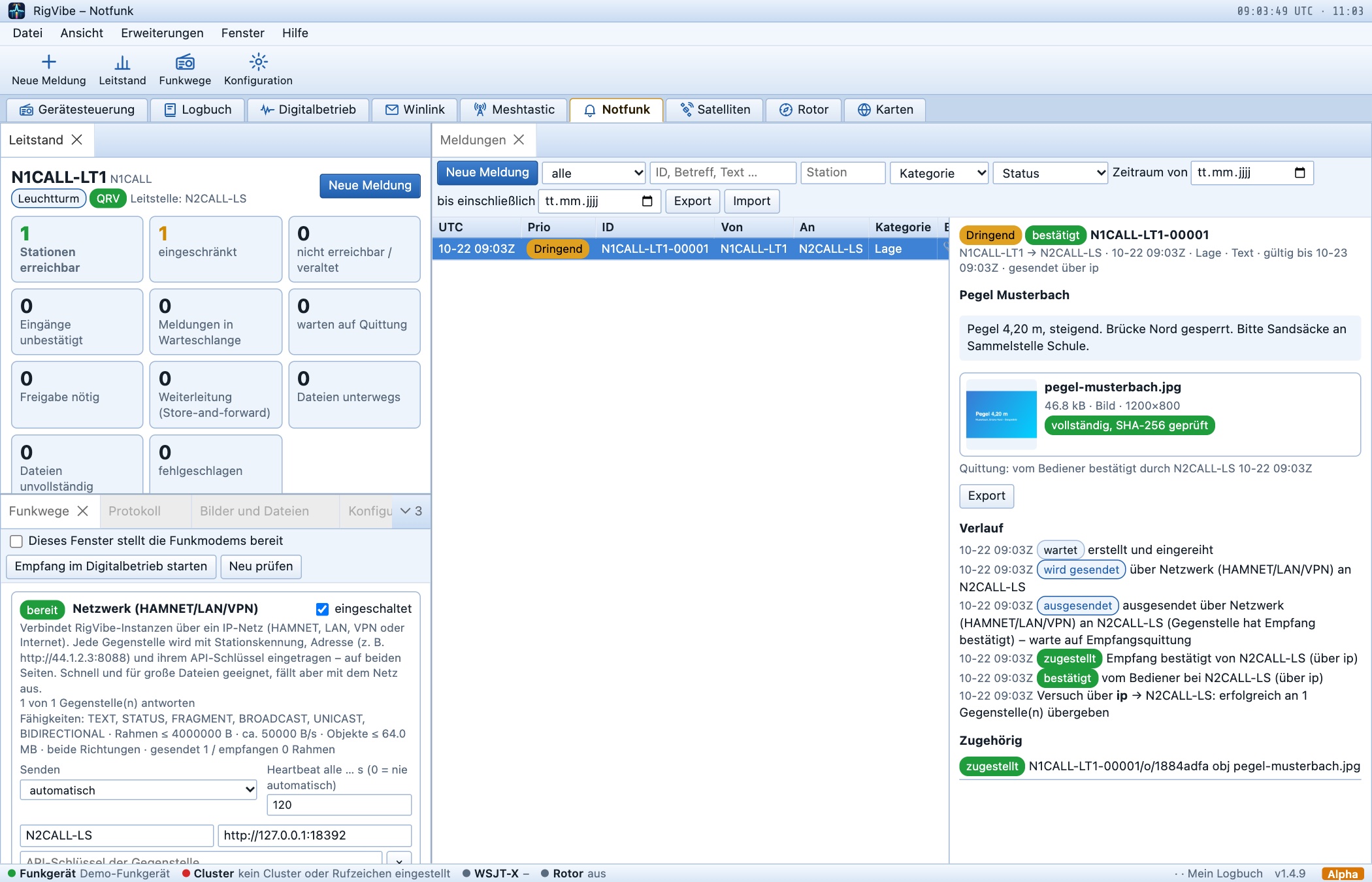
When power and network fail, every message counts. The Emergency communications section sends messages, pictures and files between beacon stations and the control center – over whatever path is working at the moment: network, Meshtastic, packet, ARDOP, VARA, protected text over PSK, RTTY or Olivia, KG-STV/SSTV, Quansheng data radio, paging or, if need be, a USB stick. RigVibe knows which station is really reachable, acknowledges every message and reassembles files with verification. You alert pagers in range with a few clicks. Everything about it is in a separate article: RigVibe Emergency Communications (German).
📟 Meshtastic, MeshCom, MeshCore, Winlink and paging
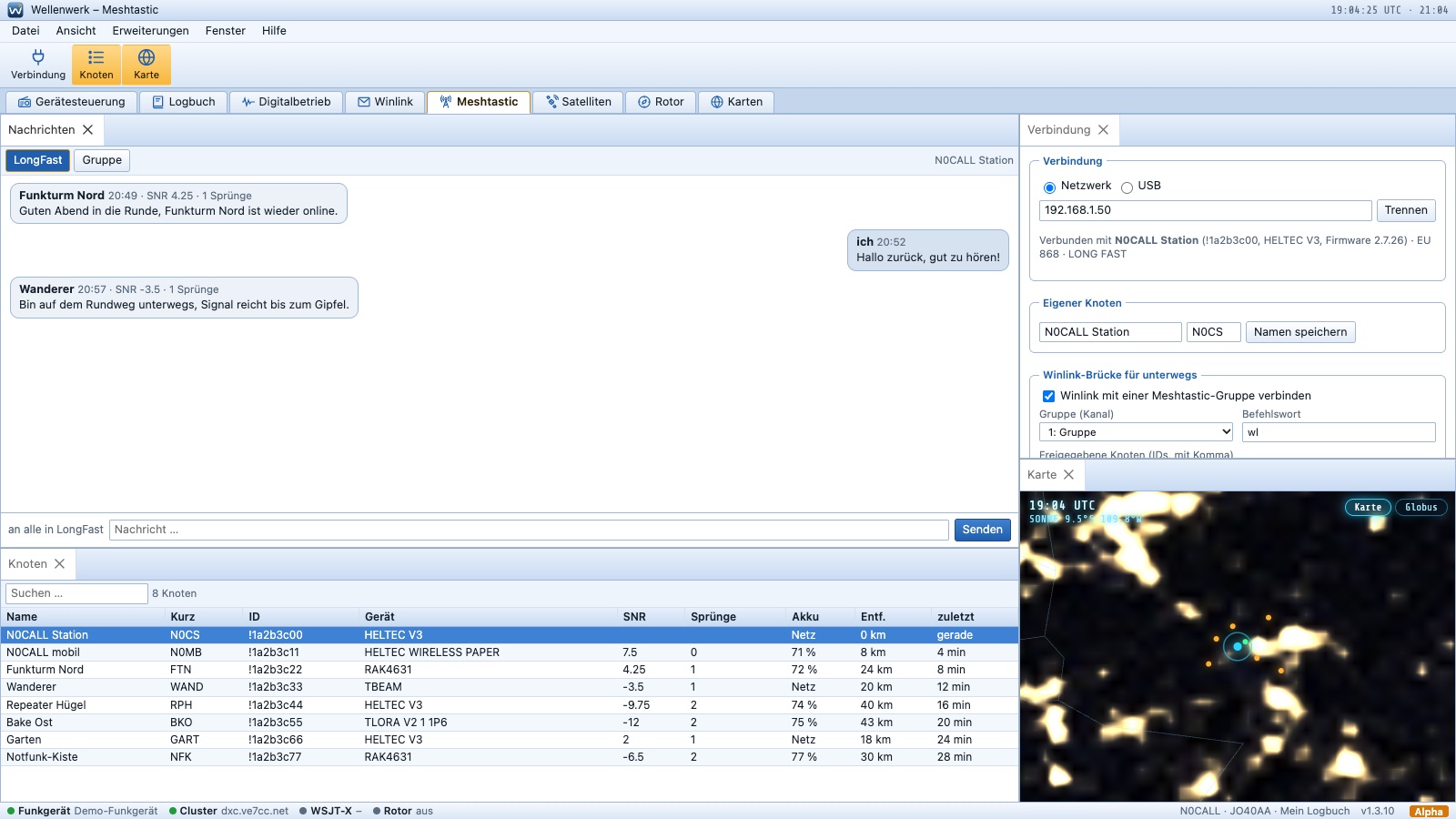
You operate your Meshtastic node directly in RigVibe – over the network, USB or Bluetooth: messages per channel and direct, all nodes with SNR, hops and distance, plus a map.
LoRa analysis with your own SDR: With a HackRF, RigVibe reads several LoRa settings at once on 433, 868 and 915 MHz and assigns each packet to its network: Meshtastic, MeshCom, MeshCore and LoRa-APRS. Unknown networks show up as raw packets, and a chirp detector reports the bandwidth and spreading factor of every LoRa signal. You can also transmit Meshtastic messages with a HackRF or PlutoSDR; on the default channel and the public MeshCore channel RigVibe reads along, and you enter further keys yourself. LoRaWAN is deliberately not decoded. So far the whole thing has been tested with Meshtastic on a real node; MeshCom and MeshCore are implemented from the public descriptions and are still waiting for a real node.
Winlink on the go: RigVibe connects Winlink with a Meshtastic group of your choice. New mail is announced there, and with your handheld you read and answer it using short commands such as wl liste, wl lies CODE or wl an DL1ABC Betreff: Text. Only your approved nodes are allowed to do this.
Paging with DAPNET: RigVibe receives POCSAG pages, sends calls via DAPNET or itself through your radio or SDR – and can even work as a DAPNET transmitter that sends the calls in its time slots. The Quansheng UV-K1/K5 sends POCSAG with the RigVibe firmware directly through its radio chip.
📒 Logbook, QSL cards and contest
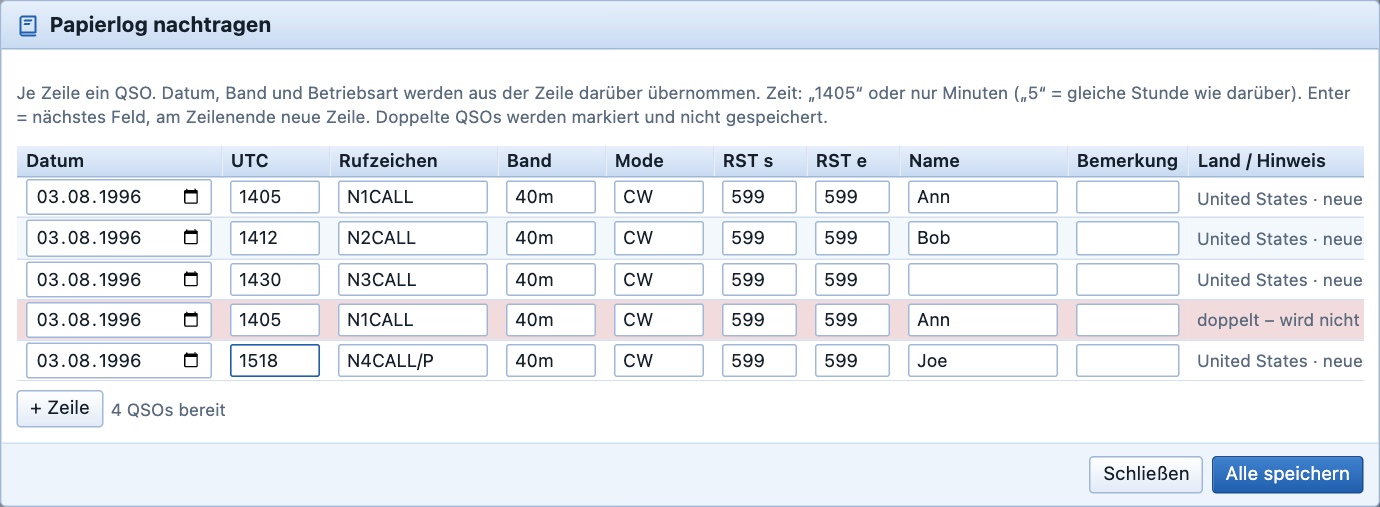
The logbook takes in your QSOs the way you work: directly from the radio control, from WSJT-X or from the paper log: you can quickly type in old logbook pages – one QSO per line, RigVibe takes date, band, mode and report from the line above, and for the time the minutes are often enough. You see dupes and new countries right away. A hot folder imports ADIF files automatically, two RigVibe installations (e.g. shack PC and laptop) synchronize their logbooks, and for VHF contests there is EDI export.
New in 1.8.5: The logbook now also uploads to HRDLog.net and the QO-100 Dx Club (only QO-100 contacts go to the QO-100 Dx Club; RigVibe adds satellite and propagation mode itself), either by hand or automatically with every new QSO. When you enter a QSO, RigVibe warns if the frequency does not match the band, and asks if the same QSO is saved twice in quick succession. Via right-click → Share you can copy a QSO as text or send it to Bluesky, X, Telegram and WhatsApp. To be honest: HRDLog and the QO-100 Dx Club have only been tested against simulated responses, not against the real servers.
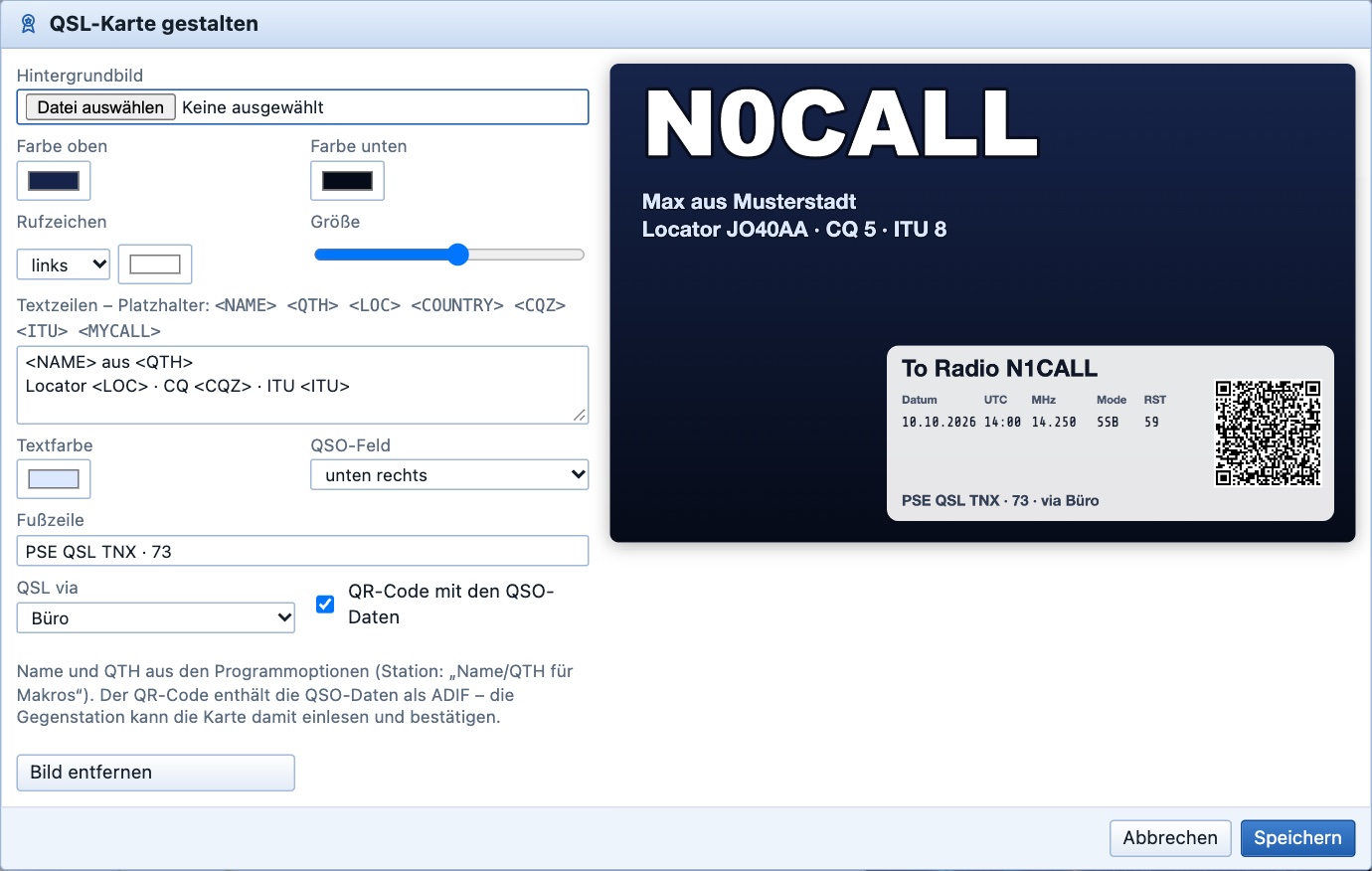
You design QSL cards yourself – with a background image, texts and a QR code containing the QSO data – and send them by e-mail or print them. Incoming cards with a QR code you scan with the camera, and the QSO is confirmed.
In a contest, RigVibe shows matching call signs from the worldwide contest list (Super Check Partial) while you type, whether a station would be a dupe and which multipliers it brings. The score with QSO rate keeps running, the F-keys send CQ, report and TU – in CW via the keyer, in SSB via the voice memories. At the end the log goes out as a Cabrillo file with the score.
The “What am I missing?” panel sorts what is currently coming in from the DX cluster and from WSJT-X by its value for your log: new country, new band, new zone. And when FT8 stays silent, “Why is nothing decoding?” checks time, frequency, mode and level and fixes most things at the push of a button. For handhelds there are the repeaters near you as a ready-made CHIRP file.
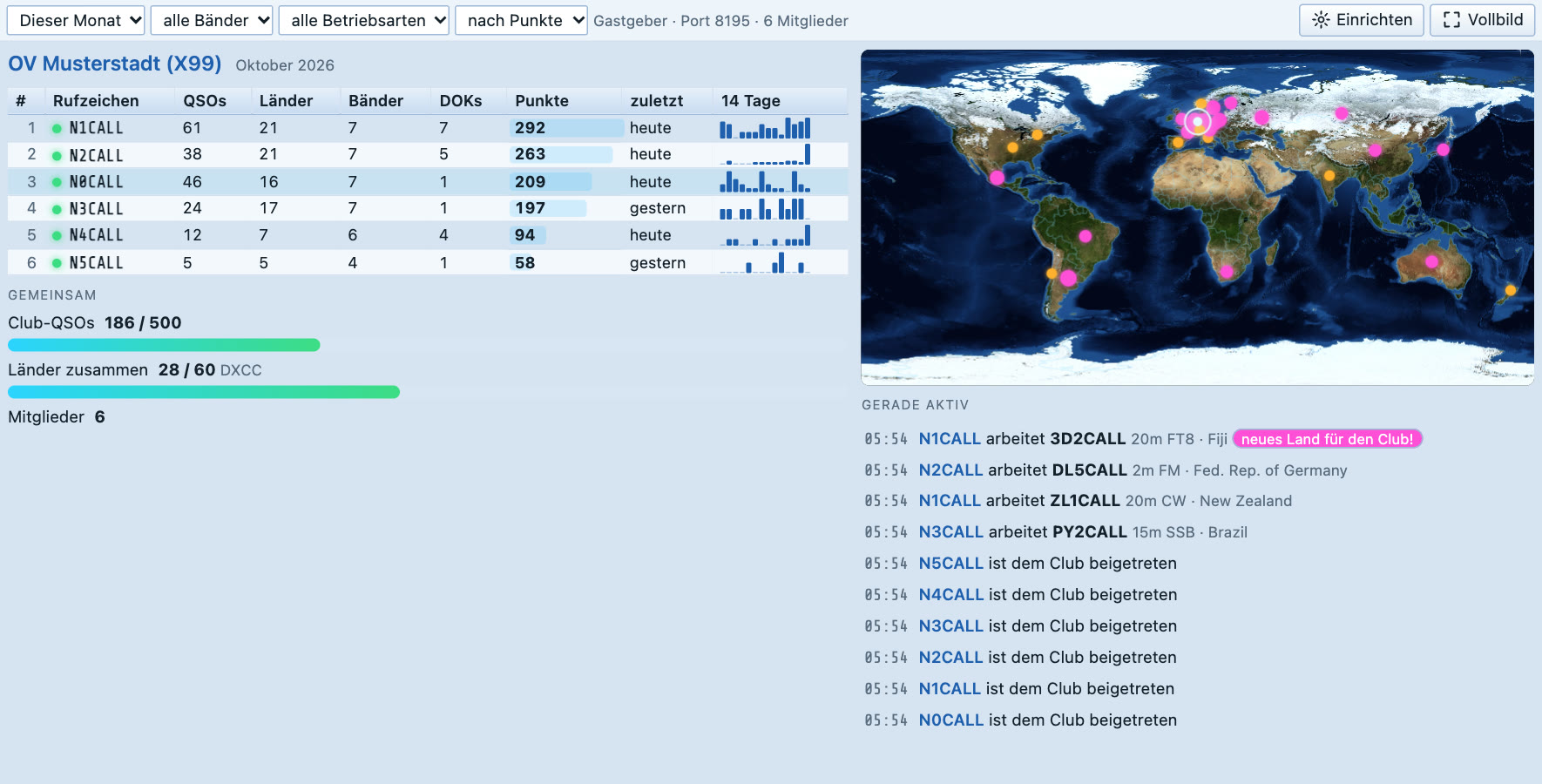
For the club evening there is the club display board: a ranking of the members, shared goals, a world map of the countries the club has worked, and a live ticker – “new country for the club!” is highlighted. One RigVibe is the host, the others only report numbers to it, no logbooks. On your own network you find each other at the push of a button, over the internet via port forwarding or VPN. With full screen for the projector.
🇩🇪 For German stations
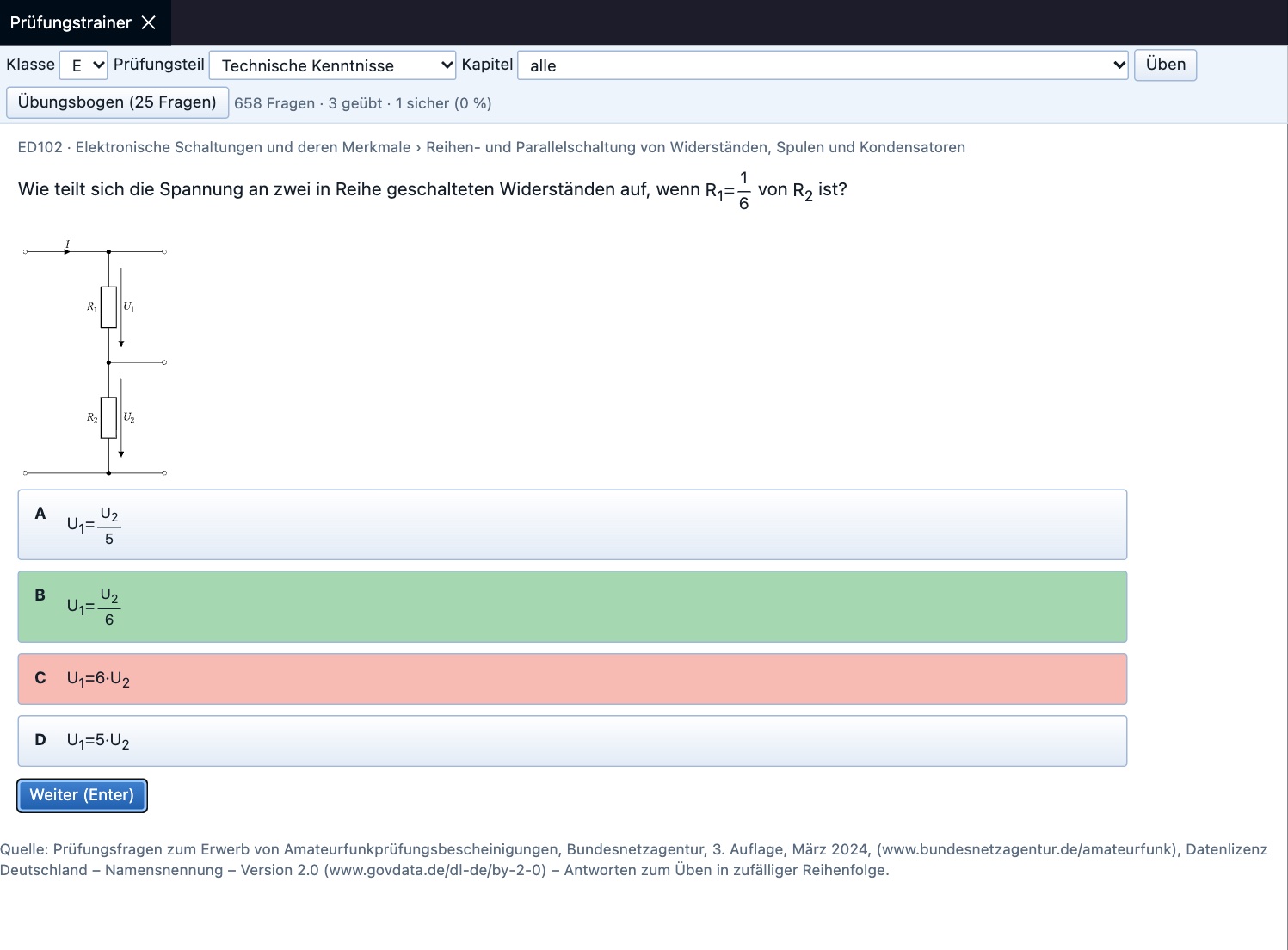
With a German call sign, RigVibe shows additional features: the Bundesnetzagentur call sign list as a callbook (name, location and class without a subscription), training operation with a printable record, an exam trainer with all the Bundesnetzagentur questions for classes N, E and A, and an amateur radio glossary. DARC features only appear if you tick “DARC member” in the options.
☀️ Space weather
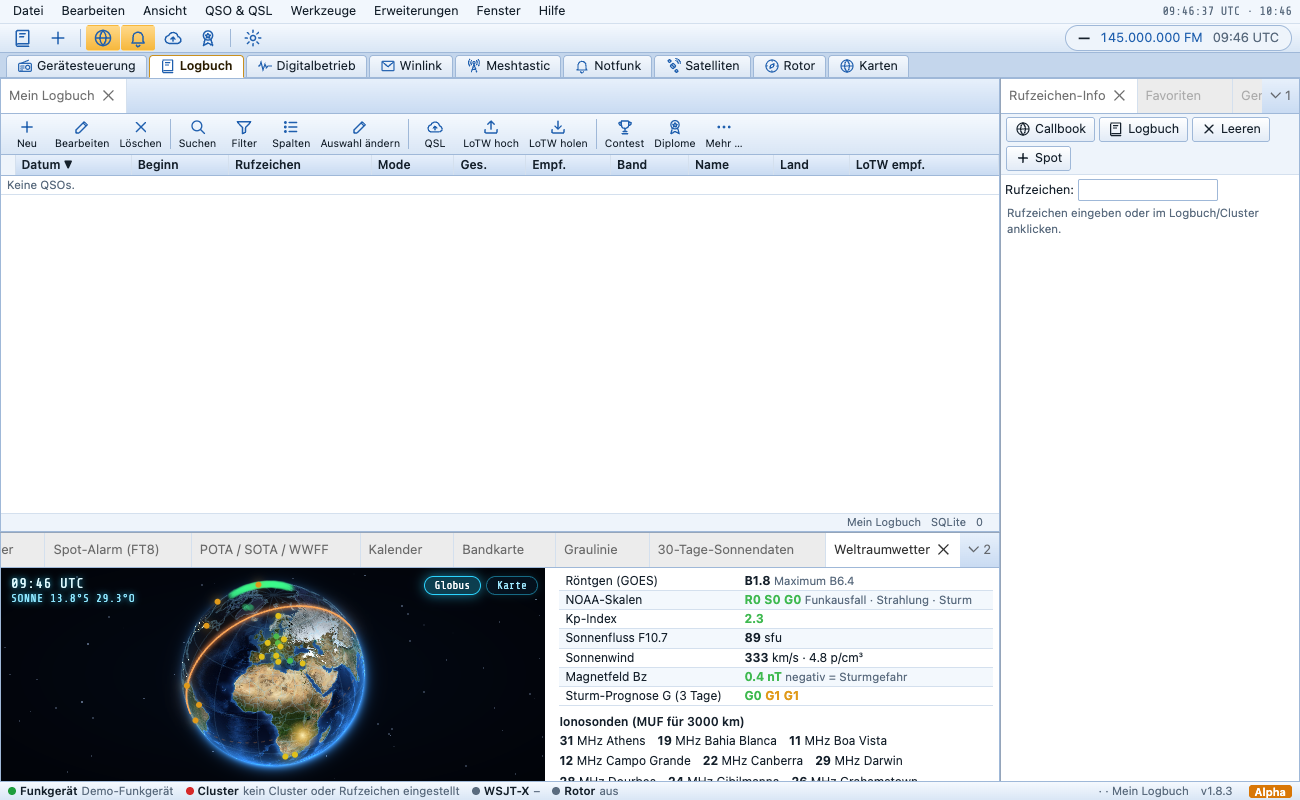
The new window View → Space weather shows at a glance what the bands are doing: the X-ray class of the Sun (GOES), the NOAA scales for radio blackout, radiation and storm, K-index, solar flux, solar wind and the magnetic field Bz, the three-day storm forecast, current warnings – and the maximum usable frequency (MUF for 3000 km) of ionosondes worldwide. The globe shows the aurora oval, and the ionosondes are dots (green from 28 MHz). The data comes from NOAA SWPC and KC2G/GIRO and is refreshed every ten minutes.
🌍 Maps from the future
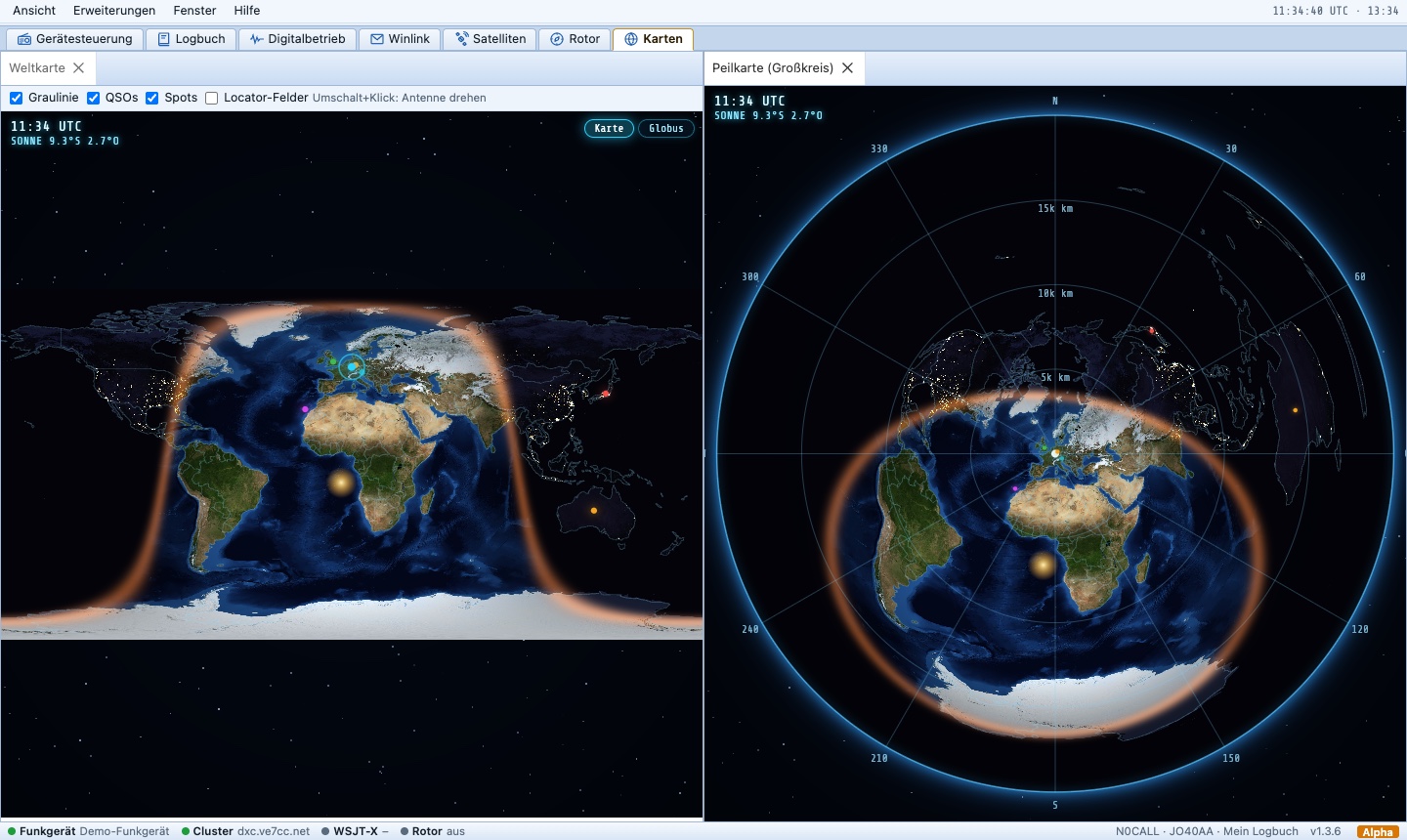
All maps show the Earth photorealistically in 3D – from real NASA satellite images: by day the “Blue Marble” with mountains and sea floor, by night the city lights, and in between the glowing gray line. The world map can be switched to a globe and rotated with the mouse, the bearing map shows all directions from your location with a glowing antenna beam, and a point of light runs along the great circle to the DX station. The rotator display and the satellite map look like this too.
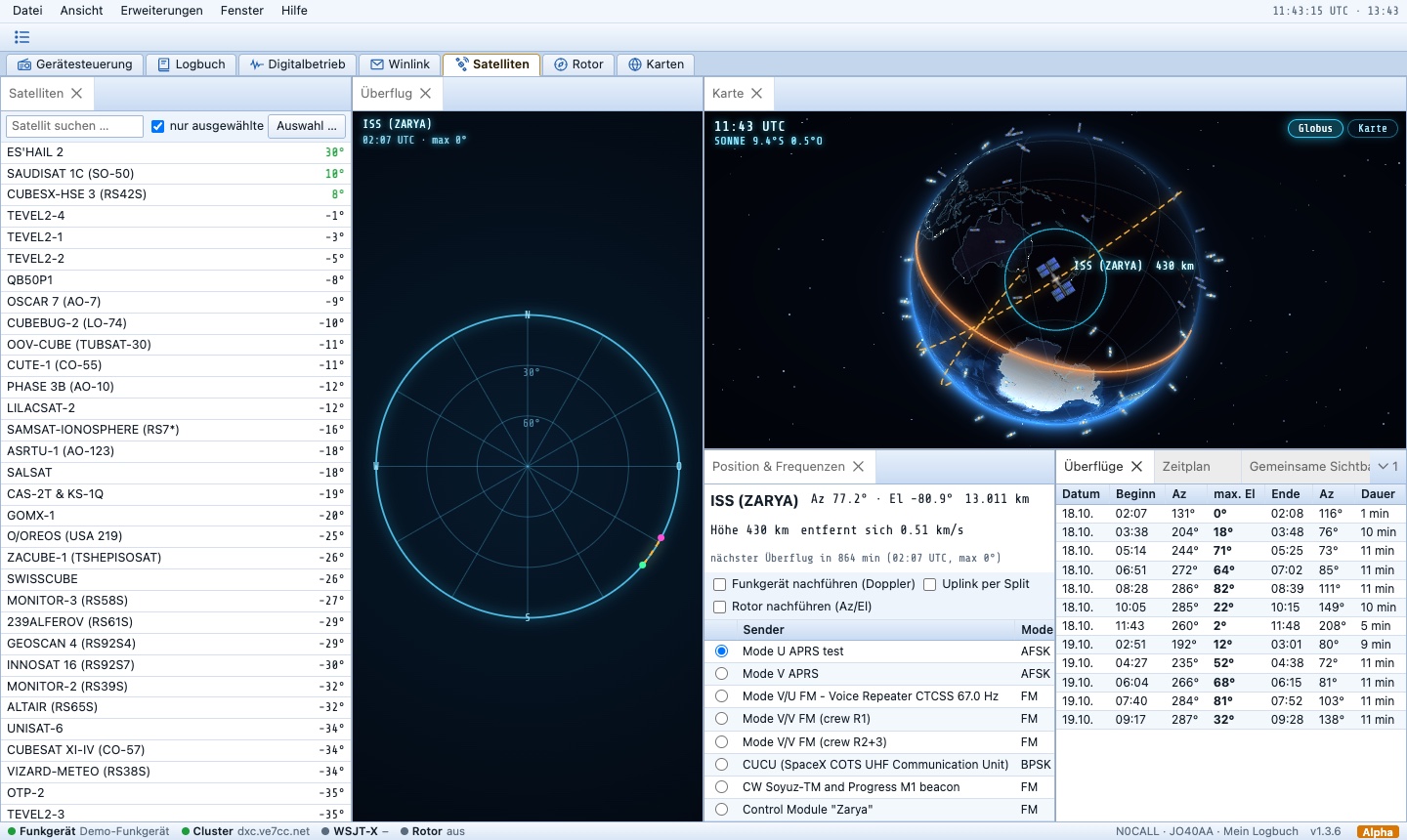
Satellites in real time: In the satellite view all selected satellites fly around the Earth as small 3D models with solar panels – the ISS with its typical shape. Orbit and footprint float above the globe at their real altitude, and the Earth turns along with the satellite. You can rotate it yourself with the mouse button held down.
📱 RigVibe on your phone
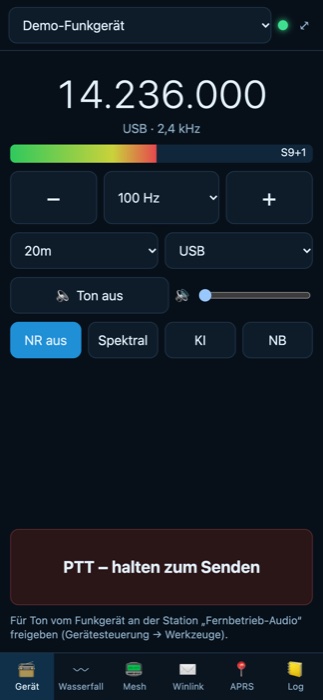
A phone view of its own with big buttons: frequency, PTT, waterfall, Meshtastic, Winlink, APRS and logbook. Through Tailscale you can reach your station on the go too – set up with one click, with a QR code to scan.
📨 And even more
- Winlink – e-mail over radio via Telnet, ARDOP, VARA and packet
- Satellites with Doppler and rotator tracking
- Rotator control and maps
- Extensions (plugins – interface, server, receiver types, frame interface for digital voice, custom modes with transmit and receive, also as pure symbols – RigVibe handles modulation and demodulation), interface in German and English
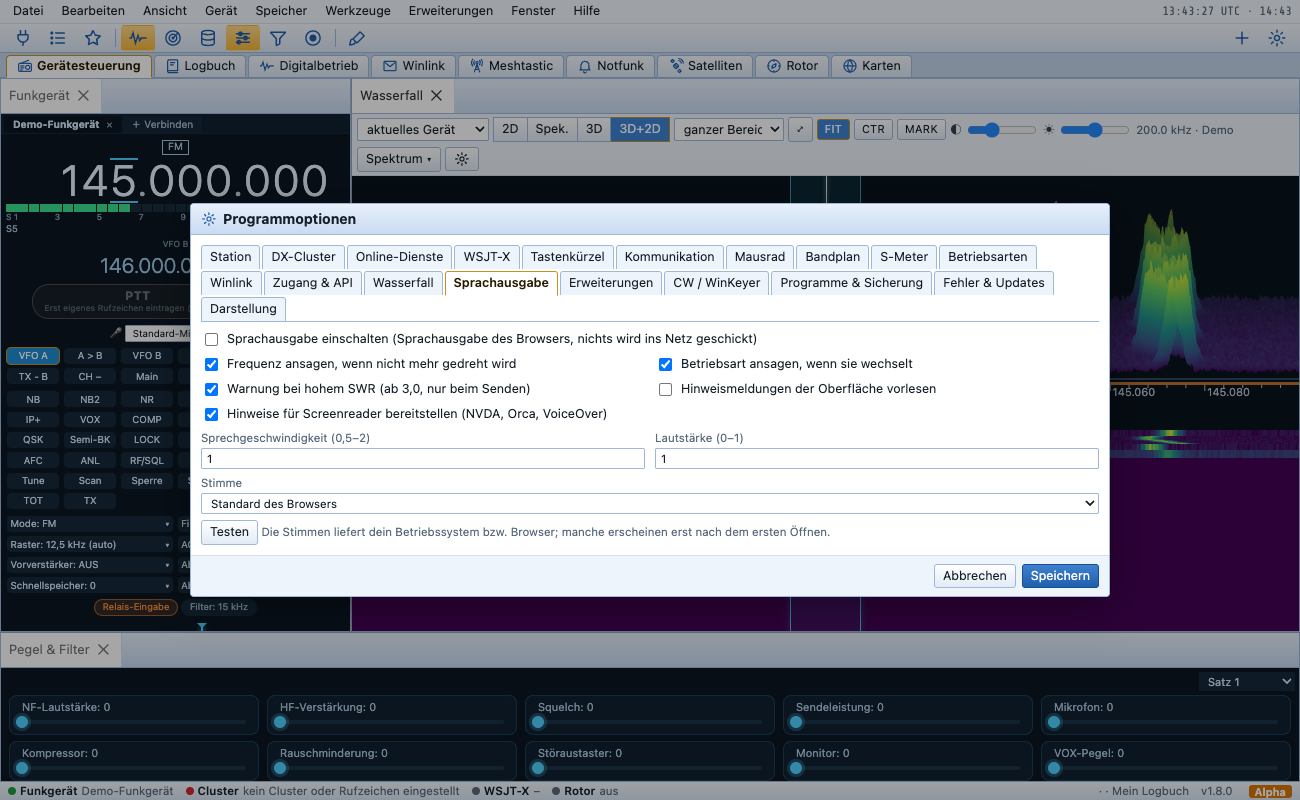
- Speech output (frequency, mode, SWR warning, notices; browser voice, can be switched off) and hints for screen readers
- Meteor shower calendar in the beacon monitor – useful for meteor scatter
- Dock windows freely, drag them to the second screen, save layouts
- Automatic updates – the program announces new versions by itself
- Linux server package for running as a service, e.g. on a home server – updates itself
⬇️ Download
| System | File |
|---|---|
| Windows 10/11 | RigVibe-1.9.0-Windows-Setup.exe |
| Mac with Apple chip (M1–M4) | RigVibe-1.9.0-Mac-AppleSilicon.dmg |
| Mac with Intel chip | RigVibe-1.9.0-Mac-Intel.dmg |
| Linux (all distributions) | RigVibe-1.9.0-Linux.AppImage |
| Debian/Ubuntu | rigvibe_1.9.0_amd64.deb |
| Linux server (service) | RigVibe-1.9.0-Linux-Server.tar.gz |
| Raspberry Pi / Linux ARM64 (64-bit) | RigVibe-1.9.0-Raspberry-Pi-ARM64.AppImage or rigvibe_1.9.0_arm64.deb |
| Raspberry Pi / Linux ARM64, server (service) | RigVibe-1.9.0-Linux-ARM64-Server.tar.gz |
| Raspberry Pi / sBitx as a standalone radio | curl -fsSL https://rigvibe.de/install.sh | bash |
- Windows: At the “Unknown publisher” warning, click “More info” → “Run anyway”.
- Mac: Drag RigVibe into “Applications” and start it the first time with right-click → “Open”.
- Linux: Make the AppImage executable or install the .deb; add your user to the
dialoutgroup.
📖 You can find a detailed manual with pictures on GitHub. You can find all versions under Releases.
🔓 Free of charge
RigVibe is free of charge. From version 1.4.6 on, however, it is no longer open source – the license terms are on GitHub. The source code of the versions up to 1.4.5 remains under the GNU GPL 3 in the release GPL source code. Use is without warranty and at your own risk – especially when RigVibe controls your transmitter or rotator.
💬 Your opinion counts
Try RigVibe and tell me what you like and what is still missing! The easiest way is directly in the program via Help → Feedback / Report a problem – or here in the comments.
73 de DM5MN 📡